In today’s fast-paced digital environment, users juggle dozens—sometimes hundreds—of online accounts. From banking portals and project management platforms to social media and email dashboards, logging in repeatedly can be both time-consuming and mentally exhausting. While browsers offer basic password-saving tools, they often fall short in delivering the balance between speed and high-end security that modern users demand. This is where auto login extensions come into play, offering streamlined access without compromising data protection.
TLDR: Auto login extensions save time by securely storing and automatically filling in login credentials across websites. The best options combine convenience with strong encryption, multi-device syncing, and advanced authentication features. In this article, four reliable auto login extensions are explored, highlighting their features, security strengths, and ideal use cases. A short FAQ section at the end answers common questions about safety and functionality.
Why Auto Login Extensions Matter
Manually entering credentials every time users access a website is inefficient and increases the risk of insecure habits, such as password reuse or writing credentials down. Auto login extensions solve these issues by:
- Automatically filling in usernames and passwords
- Generating strong, unique passwords
- Securing data using encryption
- Syncing credentials across multiple devices
Beyond convenience, these tools dramatically improve digital hygiene. Instead of reusing the same password across accounts, users can generate complex passwords without needing to remember them.
1. LastPass – A Balanced All-in-One Solution
LastPass remains one of the most recognized auto login extensions available. Designed for both individuals and businesses, it combines ease of use with strong security controls.
Key Features:
- Encrypted password vault
- One-click auto login
- Multi-factor authentication (MFA)
- Secure password sharing
- Cross-browser and cross-device support
LastPass stores login credentials in an encrypted vault protected by a master password. Once logged in, users can enable automatic sign-in for saved websites. Its password generator also allows the creation of highly complex credentials, reducing vulnerability to brute-force attacks.
Security Strength: End-to-end encryption ensures that even the service provider cannot access stored passwords. Optional biometric login adds another layer of safety.
Best For: Individuals seeking a user-friendly solution with powerful premium features.
2. 1Password – Advanced Protection for Professionals
1Password is known for its strong emphasis on privacy and secure architecture. It caters especially well to businesses, remote teams, and individuals who prioritize structured credential management.
Key Features:
- Travel mode for hiding sensitive data
- Watchtower security alerts
- Password health reports
- Secure document storage
- Automatic login form filling
One standout feature is Watchtower, which alerts users if their credentials have been involved in data breaches. The extension integrates smoothly into browsers and detects login fields instantly, filling them with a single click.
Security Strength: Uses zero-knowledge encryption architecture combined with a secret key system, making unauthorized access extremely difficult.
Best For: Businesses and security-conscious professionals who need structured vault organization and breach monitoring.

3. Bitwarden – Secure and Open-Source
Bitwarden distinguishes itself through its open-source transparency. Users and security professionals can review its code, which increases trust and accountability.
Key Features:
- Open-source architecture
- AES-256 bit encryption
- Cloud or self-hosting options
- Unlimited device syncing (free tier)
- Auto-fill and auto login support
Bitwarden’s extension integrates seamlessly with Chrome, Firefox, Edge, Safari, and other browsers. It provides instant auto-fill capability once credentials are stored. For those who want additional control, the self-hosting option allows organizations to run their own secure server.
Security Strength: Transparent codebase and industry-standard encryption protocols ensure robust data protection.
Best For: Budget-conscious users and tech-savvy individuals who value transparency and flexibility.
4. Dashlane – Premium Convenience with Dark Web Monitoring
Dashlane focuses heavily on user experience while integrating advanced protective measures. Its elegant interface appeals to users looking for seamless operation.
Key Features:
- Automatic password capture and replay
- Dark web monitoring
- Built-in VPN (premium)
- Password health scoring
- Secure notes and payment storage
The auto login process in Dashlane is especially smooth, requiring minimal user input after the initial setup. Its dark web monitoring feature notifies users if personal information appears in suspicious data leaks.
Security Strength: Zero-knowledge encryption combined with real-time breach alerts.
Best For: Users who want an intuitive interface with premium security extras.
How Auto Login Extensions Improve Security
Some users assume that automatic login features weaken security. In reality, when implemented correctly, they enhance protection. Here’s how:
- Eliminating Weak Password Habits
Users no longer reuse simple passwords across multiple sites. - Encrypted Storage
Passwords are stored using strong encryption, not plain text. - Multi-Factor Authentication
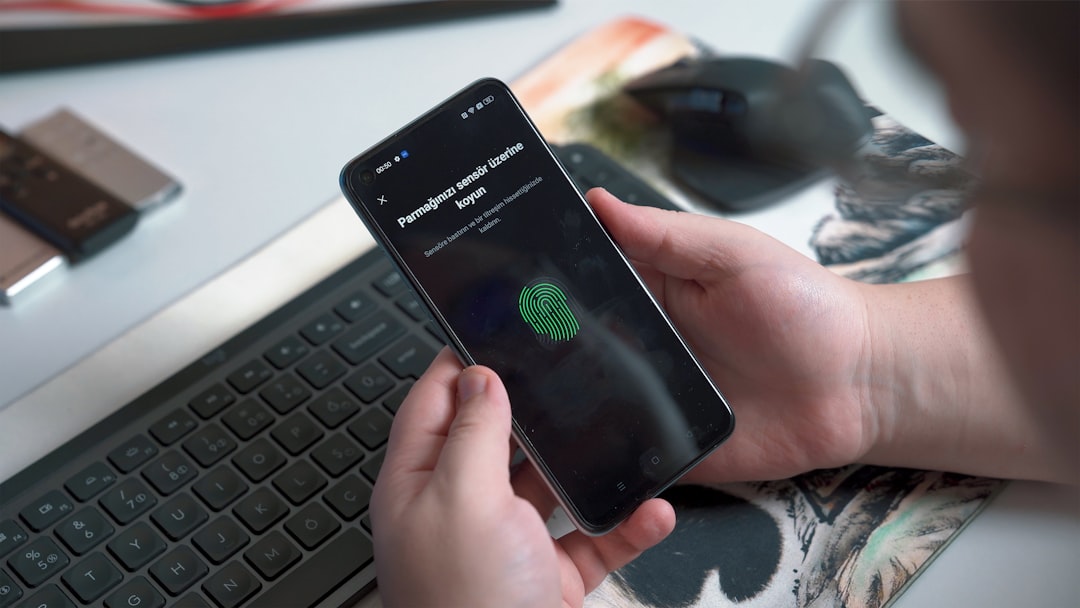
Many extensions support biometrics, authenticator apps, or hardware keys. - Breach Notifications
Users receive alerts when credentials may be compromised.
Instead of relying on memory or insecure storage methods, users centralize credential management within a protected vault.
Key Factors to Consider Before Choosing One
Not all auto login extensions offer the same functionality. When selecting the right tool, users should evaluate:
- Encryption Standards: Look for AES-256 bit encryption or equivalent.
- Zero-Knowledge Architecture: Ensures even the provider can’t see stored data.
- Device Compatibility: Confirm cross-platform functionality.
- Multi-Factor Authentication Support: Adds a second verification layer.
- User Experience: A cluttered interface may discourage usage.
Organizations should also consider administrative controls, secure sharing options, and audit logs if multiple employees require access. Factoring in these institutional capabilities expands the typical secure browser extension meaning from isolated personal utility to holistic corporate threat mitigation.
Are Auto Login Extensions Safe?
When properly configured, reputable auto login extensions are significantly safer than manual password storage. However, users must follow best practices:
- Enable multi-factor authentication
- Use a strong master password
- Keep the extension updated
- Avoid installing unknown third-party add-ons
The main vulnerability typically lies not in the technology itself but in poor user practices. A weak master password or failure to activate extra protection layers can reduce overall security effectiveness.
Final Thoughts
Auto login extensions are more than convenience tools—they are essential security companions in the modern digital landscape. By automating sign-ins and encouraging the use of strong, unique passwords, they reduce both friction and vulnerability. Whether choosing LastPass for versatility, 1Password for professional oversight, Bitwarden for open-source transparency, or Dashlane for premium extras, users can significantly improve both efficiency and data protection.
Selecting the right extension ultimately depends on specific needs, technical comfort level, and budget. However, any of these four options provide a substantial upgrade over relying solely on browser-based password storage.
Frequently Asked Questions (FAQ)
1. Are auto login extensions better than built-in browser password managers?
Yes, in most cases. Dedicated extensions typically offer stronger encryption, advanced authentication options, breach monitoring, and cross-platform syncing features that built-in browser tools may lack.
2. Can auto login extensions be hacked?
No system is entirely immune to risk, but reputable extensions use strong encryption and zero-knowledge architecture to minimize vulnerability. Using multi-factor authentication greatly reduces hacking risks.
3. What happens if someone learns my master password?
If someone gains access to the master password, they could potentially unlock the vault. This is why enabling biometric authentication or multi-factor authentication is strongly recommended.
4. Do these extensions slow down browsers?
Most modern password managers are lightweight and optimized for performance. Users generally do not experience noticeable slowdowns during normal browsing.
5. Is it safe to use auto login extensions on public computers?
It is not recommended. Public computers increase the risk of keyloggers or unauthorized access. If necessary, users should log out fully and avoid saving their master credentials on shared devices.
6. Are free versions secure?
Yes, many free plans maintain the same encryption standards as paid versions. However, premium plans may include additional security tools like dark web monitoring, secure sharing, or advanced reporting.