Your printer has a secret address. Not a spooky one. A network one. This address is called an IP address, and it helps your computer, phone, or tablet find the printer. Think of it like your printer’s house number on your Wi-Fi street.
TLDR: To find a printer’s IP address, check the printer screen, print a network report, look in your computer’s printer settings, or open your router’s device list. The IP address usually looks like 192.168.1.25. Once you find it, you can use it to connect, troubleshoot, or manage the printer. Easy stuff. No wizard hat required.
What Is a Printer IP Address?
An IP address is a number that identifies a device on a network. Your laptop has one. Your phone has one. Your smart fridge may have one, because apparently even snacks need Wi-Fi now.
Your printer’s IP address lets other devices send print jobs to the right place. Without it, your document may wander around the network like a lost sock.
A common printer IP address may look like this:
- 192.168.1.34
- 192.168.0.108
- 10.0.0.52
Most home and office printers use an IPv4 address. That is the short number with dots. Simple. Friendly. Mostly.
Method 1: Check the Printer Screen
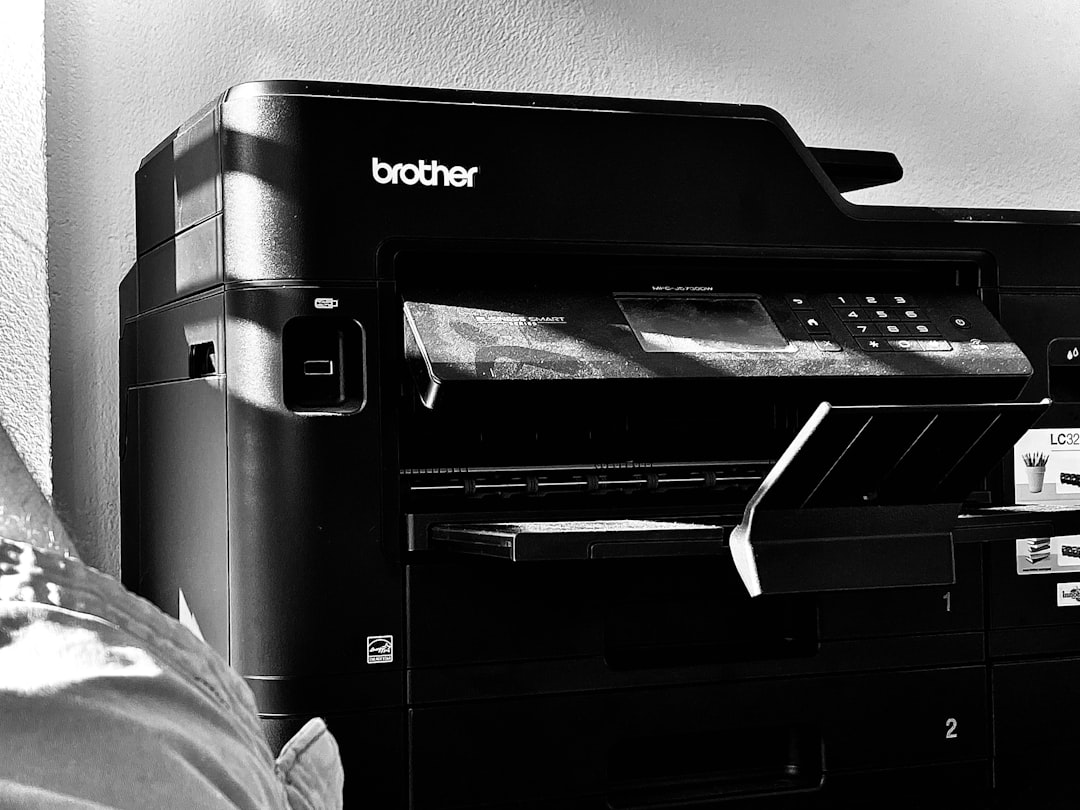
This is the easiest path if your printer has a display. Walk over to it. Say hello if you want. Then start tapping.
The exact menu names can vary, but look for words like:
- Network
- Wireless
- Wi-Fi Settings
- TCP/IP
- Network Status
Once you enter the network menu, look for IP Address. It may be hiding under Details, Status, or Connection Information.
Write the number down. Or take a photo. Do not trust your brain to remember it. Your brain is busy remembering song lyrics from 2009.
Method 2: Print a Network Configuration Page
If your printer has no screen, do not panic. Many printers can print a special report. This report is usually called a Network Configuration Page, Wireless Test Report, or Printer Status Page.
To print it, try one of these options:
- Press and hold the Wi-Fi button for a few seconds.
- Press the Info button.
- Press Wi-Fi and Cancel together.
- Use the printer app on your phone.
Different brands use different button dances. HP, Canon, Epson, Brother, and others all have their own tiny rituals. If the first combo does not work, check the printer manual or search the model number online.
When the page prints, look for:
- IP Address
- IPv4 Address
- Wireless IP
- TCP/IP Address
That number is your printer’s network location.
Method 3: Find It on Windows
If the printer is already installed on your Windows computer, you can find the IP address from settings.
- Click the Start button.
- Open Settings.
- Go to Bluetooth & devices.
- Click Printers & scanners.
- Select your printer.
- Click Printer properties.
- Open the Ports tab.
Look for a checked port. It may show the IP address directly. If it says something like Standard TCP/IP Port, click Configure Port. The printer IP address is usually listed there.
If you are using an older version of Windows, go through Control Panel, then Devices and Printers. Right-click the printer. Choose Printer properties. Then check the Ports tab.
Method 4: Find It on a Mac
Mac users also get a smooth route. No treasure map needed.
- Click the Apple menu.
- Open System Settings.
- Choose Printers & Scanners.
- Select your printer.
- Click Options & Supplies or Printer Queue.
Sometimes the IP address appears in the printer location or device information. If it does not, click around the printer details. You may see a web address that includes the IP.
You can also use Safari. Some Macs show nearby network printers through Bonjour. But if you need the exact number, the router method below is often better.
Method 5: Check Your Router
Your router knows everybody at the party. Phones. Laptops. TVs. Printers. That one mystery device named “unknown.” Suspicious.
To find your printer through the router:
- Open a web browser.
- Type your router address, such as 192.168.1.1 or 192.168.0.1.
- Sign in with the router username and password.
- Look for Connected Devices, Device List, LAN, or DHCP Clients.
- Find your printer name.
- Read the IP address next to it.
If you do not know your router login, check the sticker on the router. It may show the default details. If those were changed, ask the person who set up the network. Offer coffee. It helps.
Method 6: Use the Printer’s Mobile App
Most modern printers have apps. These apps can show network information quickly.
Try apps from your printer brand, such as:
- HP Smart
- Canon PRINT
- Epson Smart Panel
- Brother Mobile Connect
Open the app. Select your printer. Look for Printer Information, Network Settings, or Advanced Settings. The IP address may be sitting there, acting casual.
Method 7: Use a Command Prompt Trick
This method feels a little techy. But it is not scary. It is just typing.
On Windows:
- Press Windows + R.
- Type cmd.
- Press Enter.
- Type arp -a.
- Press Enter.
You will see a list of IP addresses on your network. The tricky part is knowing which one belongs to the printer. You can compare the list with your router device list. Or temporarily turn the printer off, run the command, turn it on, and run the command again. The new entry may be the printer.
On Mac, open Terminal and type arp -a. Same idea. Same detective hat.
What If the IP Address Keeps Changing?
Sometimes a printer gets a new IP address. This can happen after a router restart, power outage, or network change. Then your computer may say the printer is offline. Rude, but common.
To fix this, you can set a static IP address or create a DHCP reservation in your router. That means the printer keeps the same address every time.
For most people, the router reservation is easier. Find your printer in the router device list. Choose an option like Reserve IP or Always use this IP. Save it. Restart the printer.
Quick Troubleshooting Tips
If you cannot find the IP address, try these simple fixes:
- Make sure the printer is on. Sleeping printers are not helpful.
- Check Wi-Fi. The printer must be on the same network as your computer.
- Restart the printer. Classic move. Still works.
- Restart the router. Give the network a tiny nap.
- Check cables. If it uses Ethernet, make sure the cable is plugged in.
- Update the printer app or driver. Old software can get cranky.
Final Thoughts
Finding a printer’s IP address sounds technical, but it is usually simple. Start with the printer screen. Then try a network report. If that fails, ask your computer, router, or printer app.
Once you have the IP address, keep it somewhere safe. It can help you add the printer, fix offline errors, or open the printer’s web settings page. Your printer may still jam paper sometimes. But at least now, it will not be hiding from you on the network.