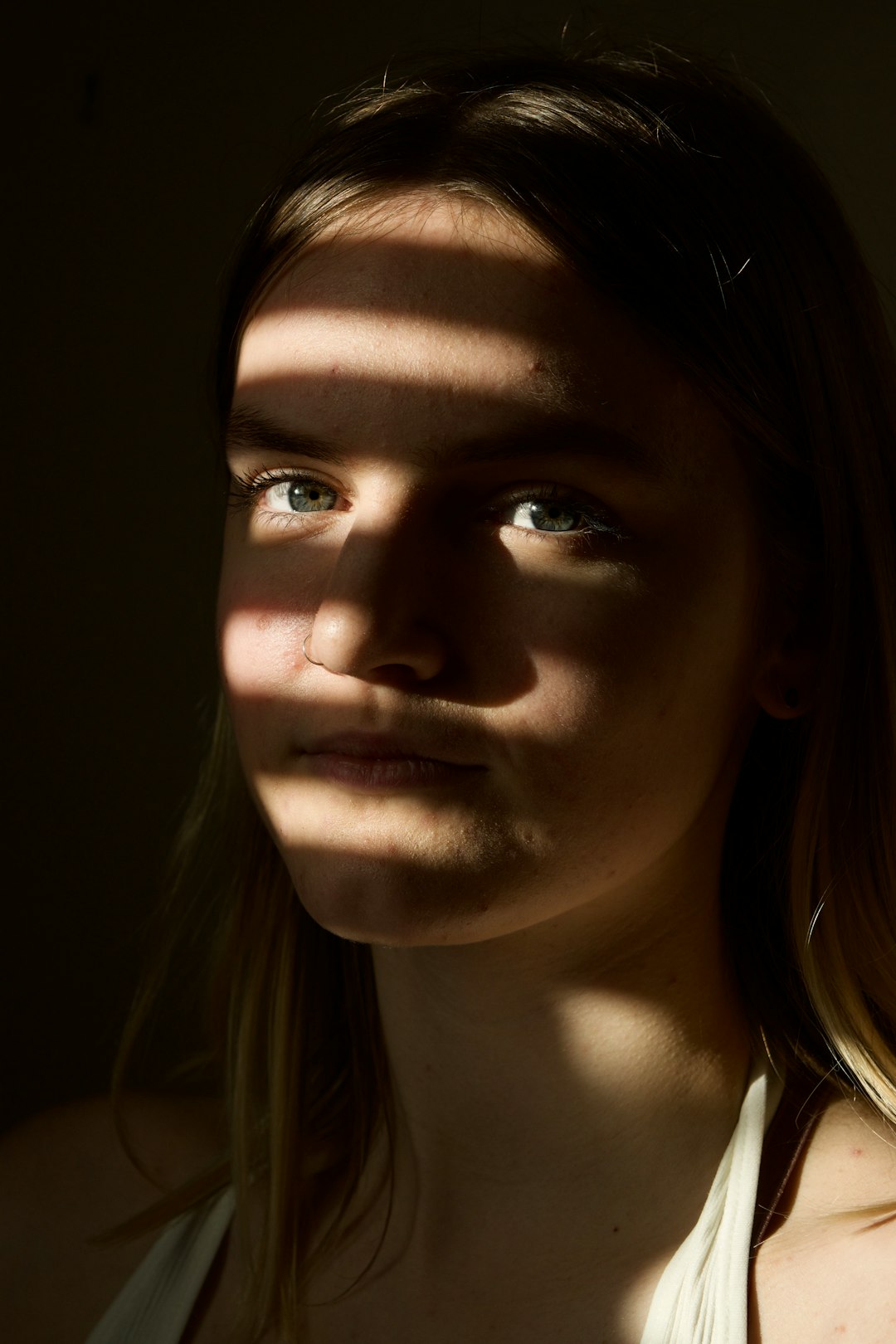
Overexposed photos happen to everyone. Even pros come home with images that look like they were kissed by the sun a little too hard. Faces glow. Skies turn white. Details vanish like socks in a dryer. The good news? You can often fix them with smart editing and a calm brain.
TLDR: To fix an overexposed photo, lower the exposure, reduce the highlights, and bring back detail with whites, contrast, and curves. If parts of the image are totally white, they may be impossible to fully recover. Edit gently, use masks for bright areas, and always check skin tones. Shoot in RAW next time for the best chance of saving bright photos.
What Is an Overexposed Photo?
An overexposed photo is too bright. Simple as that.
The camera lets in too much light. This can happen because of a slow shutter speed, wide aperture, high ISO, or very bright scene. The result is a photo with washed-out colors and missing details.
You may see white skies. You may see shiny faces. You may see a dress with no texture. That is overexposure.
Think of it like adding too much milk to coffee. You can still drink it. But the flavor is weaker. Editing helps bring the flavor back.
First, Check If the Photo Can Be Saved
Before you start editing, zoom in. Look at the brightest areas. Are they pure white? Do they have any detail?
If the area is pure white, it may be clipped. Clipped means the camera did not capture detail there. No editing app can fully bring back detail that does not exist. Not even magic. Not even coffee.
But do not give up too soon. Many overexposed photos still have hidden detail. This is especially true if you shot in RAW.
- RAW files hold more image data.
- JPEG files are smaller and more limited.
- RAW gives you more room to fix exposure.
- JPEG can still be improved, but with less flexibility.
Step 1: Lower the Exposure
Start with the obvious tool. Lower the exposure slider.
This makes the whole photo darker. Go slowly. Small moves work best. Try lowering exposure by half a stop or one stop first. If the photo is extremely bright, you may need more.
But be careful. Lowering exposure affects everything. It darkens faces, shadows, clothes, grass, and puppies. Yes, even innocent puppies.
If the whole image is too bright, exposure is the right first move. If only the sky or forehead is too bright, use other tools too.
Step 2: Reduce the Highlights
The highlights slider is your best friend. It controls the bright parts of the photo. It does not crush the whole image as much as exposure does.
Pull the highlights down. Watch the sky. Watch shiny skin. Watch white shirts. You may see clouds return. You may see texture come back. It feels like a tiny photo miracle.
A good starting point is between -30 and -80. But every photo is different. Trust your eyes.
If the photo starts to look gray or muddy, you went too far. Back it up a little.
Step 3: Adjust the Whites
The whites slider controls the brightest white point in the photo. It helps set the top edge of brightness.
Lowering whites can reduce harsh bright areas. It can also help recover detail. But use it with care. Too much can make the photo look flat and tired.
Here is a pro trick. Hold the clipping preview key if your editing app has one. In many programs, you can hold Alt or Option while moving the whites slider. This shows which parts are clipping.
Your goal is not to remove every tiny clipped spot. A small sparkle in the eye is fine. A whole forehead turned into a light bulb is not fine.
Step 4: Bring Back Contrast
Once you reduce exposure and highlights, the image may look dull. That is normal. You took away brightness. Now you need to bring back shape.
Add a little contrast. Not too much. Think seasoning, not soup.
Contrast makes dark areas darker and bright areas brighter. It adds punch. It helps the photo feel alive again.
You can also use the blacks slider. Lower blacks slightly to add depth. This is great for photos that look washed out after fixing exposure.
- Lower exposure to reduce overall brightness.
- Lower highlights to recover bright detail.
- Lower whites to control clipping.
- Add contrast to restore energy.
- Adjust blacks for depth.
Step 5: Use Curves Like a Pro
The tone curve may look scary. It is not. It is just a graph that controls light.
The left side controls shadows. The middle controls midtones. The right side controls highlights.
To fix overexposure, pull down the upper-right part of the curve. This lowers highlights. Then gently adjust the middle if the image still feels too bright.
A soft S curve can help too. Pull shadows down a little. Lift or lower midtones as needed. Keep highlights controlled. The result feels more polished.
Curves are powerful. They are also dramatic. Move them like you are petting a nervous cat. Softly. Slowly. With respect.

Step 6: Fix Only the Bright Areas with Masks
Sometimes the whole photo is not overexposed. Only one part is too bright. A sky. A window. A face. A white shirt at a wedding. Classic troublemaker.
This is where masks help.
A mask lets you edit only part of the image. You can darken the sky without darkening the person. You can reduce shine on a forehead without ruining the background.
Use a brush, gradient, or subject selection tool. Then lower exposure or highlights in that area only.
Good Places to Use Masks
- Bright skies
- Shiny skin
- White clothing
- Windows
- Reflections
- Bright sand or snow
Masks make your edit look professional. They stop the photo from looking like one giant brightness correction.
Step 7: Watch the Skin Tones
Skin is tricky. Overexposed skin can lose color and texture. It can look shiny, pale, or plastic.
Start by lowering highlights. Then use a local mask on the face. Reduce exposure just a little. Add back a tiny bit of texture or clarity if needed.
But be gentle. Too much clarity can make skin look rough. Too much texture can make every pore shout, “Hello, I am here!” Nobody asked for that.
For portraits, check the cheeks, nose, forehead, and chin. These areas often get too bright first.
If skin looks too yellow, red, or gray after darkening, adjust the white balance or color temperature. A small color correction can make a huge difference.
Step 8: Restore Color with Vibrance
Overexposed photos often look faded. Colors lose their pop. The grass looks tired. The sky looks empty. The subject looks like they live inside a cloud.
Use vibrance before saturation. Vibrance is smarter. It boosts dull colors more than strong colors. It is also kinder to skin tones.
Add a little vibrance. Maybe +10 to +25. Then check the photo.
Use saturation only if needed. Too much saturation can make the image look fake. Unless you are editing a candy poster, keep it under control.
Step 9: Add Detail with Texture and Clarity
After lowering bright areas, the photo may still feel soft. Use texture or clarity to bring back detail.
Texture helps small details. It is good for hair, fabric, leaves, and buildings.
Clarity affects midtone contrast. It adds punch. It can also make images look gritty.
Use both carefully. A little goes a long way. Start with low values. Your photo should look sharp, not crunchy.
Step 10: Use Dehaze for Bright Skies
The dehaze tool can help with washed-out skies. It adds contrast and depth. It can bring back clouds and blue tones.
But dehaze is strong. Too much can make the sky look dirty or strange. Use it like hot sauce. A few drops are great. A whole bottle is a problem.
If only the sky needs help, use a sky mask. Add dehaze there. Lower highlights. Adjust blue saturation if needed.
Step 11: Try Black and White
Sometimes color cannot be saved well. That is okay. Try black and white.
Black and white can turn a flawed bright photo into something artistic. It hides color problems. It focuses on shape, light, and emotion.
Lower highlights. Add contrast. Deepen blacks. Then adjust the color channels if your editor allows it.
A washed-out beach photo can become dreamy. A bright street photo can become dramatic. A blown-out portrait can become soft and timeless.
When life gives you overexposure, make fine art. Then act like it was your plan all along.
Common Mistakes to Avoid
Fixing overexposure is simple. But it is easy to go too far. Here are a few mistakes to dodge.
- Making the photo too dark: Do not punish the whole image for one bright spot.
- Reducing highlights too much: This can make whites look gray.
- Adding too much contrast: This can bring back harshness.
- Ignoring skin tones: Faces matter most in portraits.
- Oversaturating colors: Neon grass is rarely a good idea.
- Sharpening too hard: This creates halos and crunchy edges.
Best Editing Workflow for Overexposed Photos
Here is a simple order that works well.
- Check if highlights are clipped.
- Lower overall exposure if needed.
- Reduce highlights.
- Adjust whites.
- Add contrast or lower blacks.
- Use masks for bright areas.
- Fix skin tones and color.
- Add texture, clarity, or dehaze.
- Crop and straighten.
- Compare before and after.
Always compare your edit with the original. Your eyes adjust fast. After a few minutes, weird edits can start looking normal. Step away. Drink water. Come back. Your photo will tell the truth.
How to Avoid Overexposed Photos Next Time
Editing helps. But prevention is better. It saves time. It saves stress. It saves you from yelling at your camera in public.
Use these camera tips next time:
- Shoot in RAW: This gives you more editing power.
- Check the histogram: If the graph hits the right edge, highlights may be clipped.
- Use exposure compensation: Dial it down in bright scenes.
- Turn on highlight warnings: These are often called blinkies.
- Expose for the highlights: Keep bright areas safe, then lift shadows later.
- Avoid harsh midday sun: Soft light is easier to capture.
- Use shade: It helps portraits look smoother.
If you photograph snow, beaches, or white walls, be extra careful. Bright scenes fool cameras. The camera may not know what you want. It is smart, but not psychic.
Final Thoughts
Overexposed photos are not always ruined. Many can be saved with a few careful edits. Lower exposure. Reduce highlights. Adjust whites. Use masks. Restore contrast and color.
The key is balance. You want detail without making the image dull. You want color without making it loud. You want skin to look natural, not like wax fruit.
So take a breath. Open your editor. Move those sliders slowly. Your bright photo may still have a beautiful image hiding inside it.