Getting a new Android phone is exciting. It feels like opening a tiny magic box. It is shiny. It is fast. It probably has a camera that can see your pores from space. But then comes the big question: how do you move everything from your old Android phone to your new Android phone? Good news. It is easier than you think.
TLDR: The easiest way to transfer data from Android to Android is to use your Google account backup during setup. You can also use a USB cable for a faster and fuller transfer. Phone brands like Samsung, Xiaomi, OnePlus, and Oppo also have their own transfer apps. Before you start, charge both phones, connect to Wi Fi, and back up your important stuff.
Before You Start: Do These Quick Things
Before you press any shiny buttons, get both phones ready. Think of this as packing your suitcase before a trip. If you pack well, the journey is smooth.
- Charge both phones. Aim for at least 50 percent battery.
- Connect to Wi Fi. Big transfers can eat mobile data like a hungry dinosaur.
- Sign in to your Google account on the old phone.
- Update your apps if you can.
- Back up important data before you begin.
- Keep your lock screen PIN nearby. You may need it.
Also, do not factory reset your old phone yet. Wait until your new phone has everything you need. Then you can say goodbye properly.

Method 1: Use Google Backup During Setup
This is the most common method. It is also the easiest. Google can move many things from your old Android phone to your new one.
It can transfer your contacts, calendar events, photos, videos, apps, call history, SMS messages, Wi Fi passwords, wallpapers, and some device settings. Nice, right?
Step 1: Back Up Your Old Phone
On your old Android phone, do this:
- Open Settings.
- Tap Google.
- Tap Backup.
- Turn on Backup by Google One.
- Tap Back up now.
Now wait. Grab a snack. Maybe two. The time depends on how much data you have.
Step 2: Set Up Your New Phone
Turn on your new Android phone. Follow the setup screen. When it asks if you want to copy apps and data, say yes. Your phone may show options like copy from another device or restore from backup.
Sign in with the same Google account you used on your old phone. Choose the latest backup. Then tap restore.
Your apps will start downloading. Your contacts will appear. Your photos may show up through Google Photos. It is like your old phone moved into a new apartment.
What Google Backup May Not Transfer
Google Backup is great. But it is not a wizard with a beard. Some things may not move perfectly.
- Some app logins may not transfer.
- Banking apps may need fresh setup.
- Some game progress may depend on the game account.
- Downloaded files may not always restore.
- WhatsApp chats need their own backup method.
So check your important apps after the transfer. Especially apps for money, work, school, and messages.
Method 2: Transfer with a USB Cable
If your new phone gives you the option to use a cable, do it. A cable transfer is often faster. It can also move more data.
You may need a USB C to USB C cable. If your old phone uses micro USB, you may need an adapter. Many new phones come with one in the box. If not, they are easy to buy.
How Cable Transfer Works
- Turn on your new Android phone.
- Start the setup process.
- Choose Copy apps and data.
- Select the option to use a cable.
- Connect both phones.
- Unlock your old phone.
- Allow the connection if asked.
- Choose what you want to copy.
- Tap Transfer or Copy.
Keep both phones still during the transfer. Do not yank the cable. Do not test your new phone’s spinning ability. This is not the time.
Cable transfer is useful for photos, videos, messages, contacts, apps, and settings. It can be more complete than cloud restore. It is also better if your internet is slow.
Method 3: Use Your Phone Brand’s Transfer App
Many Android brands have their own transfer tools. These apps are made to move data from old phone to new phone in a simple way.
- Samsung: Smart Switch
- OnePlus: Clone Phone
- Xiaomi, Redmi, Poco: Mi Mover
- Oppo: Clone Phone
- Vivo: EasyShare
- Huawei: Phone Clone
These apps usually work by creating a direct connection between the two phones. Sometimes they use Wi Fi. Sometimes they use a cable. The app will guide you.
Basic Steps for Brand Transfer Apps
- Install the transfer app on both phones, if needed.
- Open the app on both phones.
- Choose old phone on the old device.
- Choose new phone on the new device.
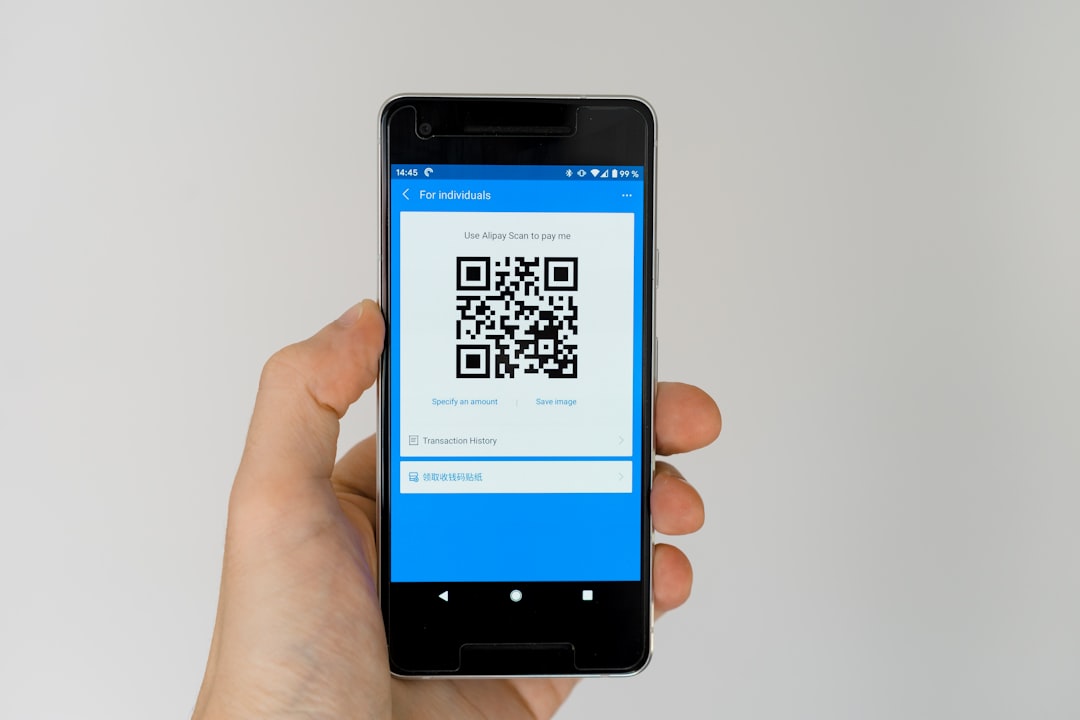
- Scan the QR code or connect through Wi Fi.
- Select the data you want.
- Start the transfer.
These tools are great if both phones are from the same brand. For example, Samsung to Samsung is very smooth with Smart Switch. It can feel like your old phone walked across a tiny bridge.
Method 4: Move Photos and Videos with Google Photos
Photos and videos are often the most precious part of a phone. They are also huge. Like, “why is my cat video 700 MB?” huge.
The easiest way to move them is with Google Photos.
Back Up Photos on the Old Phone
- Open Google Photos.
- Tap your profile picture.
- Tap Photos settings.
- Tap Backup.
- Turn backup on.
Wait until the backup is complete. You can check the status inside Google Photos. Once done, open Google Photos on your new phone. Sign in with the same Google account. Your memories should be there.
Remember, Google storage is shared with Gmail, Drive, and Photos. If you run out of space, you may need to delete old files or buy more storage.
Method 5: Transfer Files with Quick Share
Quick Share is a simple way to send files between Android phones. It used to be called Nearby Share on many devices. It is great for photos, videos, documents, and random files you forgot existed.
To use it:
- Open the file, photo, or video on your old phone.
- Tap the Share button.
- Choose Quick Share.
- Select your new phone.
- Accept the file on the new phone.
This method is best for smaller batches of files. It is not ideal for moving your entire digital life. But it is perfect when you missed a folder or need to send one important document.
Method 6: Use an SD Card or Computer
Some Android phones still support microSD cards. If yours does, lucky you. You can move photos, videos, music, and documents to the SD card. Then put the card into your new phone.
You can also use a computer. Connect your old phone to the computer with a USB cable. Copy your files to the computer. Then connect your new phone and copy the files over.
This method is more manual. It is not fancy. But it works. It is like carrying boxes instead of hiring movers.
Do Not Forget WhatsApp
WhatsApp has its own chat transfer system. Do not assume your chats will magically appear. They might not.
To back up WhatsApp:
- Open WhatsApp on your old phone.
- Tap the three dots.
- Go to Settings.
- Tap Chats.
- Tap Chat backup.
- Choose your Google account.
- Tap Back up.
On your new phone, install WhatsApp. Verify the same phone number. When asked, restore your chat backup.
If WhatsApp offers direct chat transfer with a QR code, you can use that too. It can be fast and handy. Just follow the on screen steps.
Check Your Contacts
Most contacts sync through your Google account. But some contacts may be stored only on the phone or SIM card. That can be sneaky.
On your old phone, open the Contacts app. Look for settings. Find an option like move contacts, export, or sync contacts. Make sure your contacts are linked to your Google account.
On the new phone, go to Settings, then Passwords and accounts or Accounts. Tap your Google account. Make sure Contacts sync is on.
Watch Out for Two Factor Authentication Apps
This part is important. If you use apps like Google Authenticator, Microsoft Authenticator, or Authy, transfer them carefully.
These apps protect your accounts. That is good. But if you reset your old phone too soon, you may lock yourself out. That is bad. Very bad. Like “forgot your keys inside a volcano” bad.
Open your authenticator app. Look for an export or transfer option. Move your codes to the new phone before wiping the old one. Also save backup codes for major accounts like Google, email, banking, and work tools.

Apps and Logins: Expect a Little Work
Your apps may transfer. But many apps will still ask you to log in again. This is normal. It is not your phone being rude. It is security.
Make sure you know passwords for important accounts. If you use a password manager, install it first on the new phone. Then sign in. This makes everything else easier.
Also check banking apps, payment apps, transit apps, school apps, and work apps. Some may need special verification.
After the Transfer: Do a Quick Inspection
Once the transfer is done, do not celebrate with a factory reset yet. First, check your new phone.
- Are your contacts there?
- Are your photos and videos visible?
- Do your messages look right?
- Can you open WhatsApp chats?
- Are your important apps installed?
- Can you log in to banking and email?
- Are your files and downloads present?
- Are your authenticator codes working?
If something is missing, do not panic. Your old phone still has it. That is why we waited.
When Can You Reset the Old Phone?
Only reset the old phone when you are sure the new one has everything you need. Give it a day or two if you can. Use the new phone normally. Open your important apps. Send messages. Check photos. Test calls.
When you are ready, back up anything extra. Then remove accounts from the old phone. After that, you can factory reset it.
To reset most Android phones:
- Open Settings.
- Tap System or General management.
- Tap Reset.
- Choose Factory data reset.
- Follow the prompts.
This erases your personal data from the old device. It is a smart step if you plan to sell, trade, recycle, or give away the phone.
Best Method for Most People
If you want the simplest path, use Google Backup during setup. If you want the fastest and fullest path, use a USB cable. If you have a Samsung phone, Smart Switch is excellent. If you have another brand, try its transfer app.
You can also mix methods. This is often the best plan. Use Google Backup for settings and apps. Use Google Photos for pictures. Use WhatsApp backup for chats. Use Quick Share for any files that escaped the first round.
Final Thoughts
Moving from one Android phone to another does not have to be scary. It is mostly tapping buttons, waiting a bit, and checking your stuff. The key is simple: back up first, transfer second, reset last.
Your new phone is ready for action. Your photos can come along. Your chats can come along. Even your weird folder of screenshots from 2019 can come along. Enjoy the upgrade. And may your battery be strong, your storage be large, and your transfer be drama free.