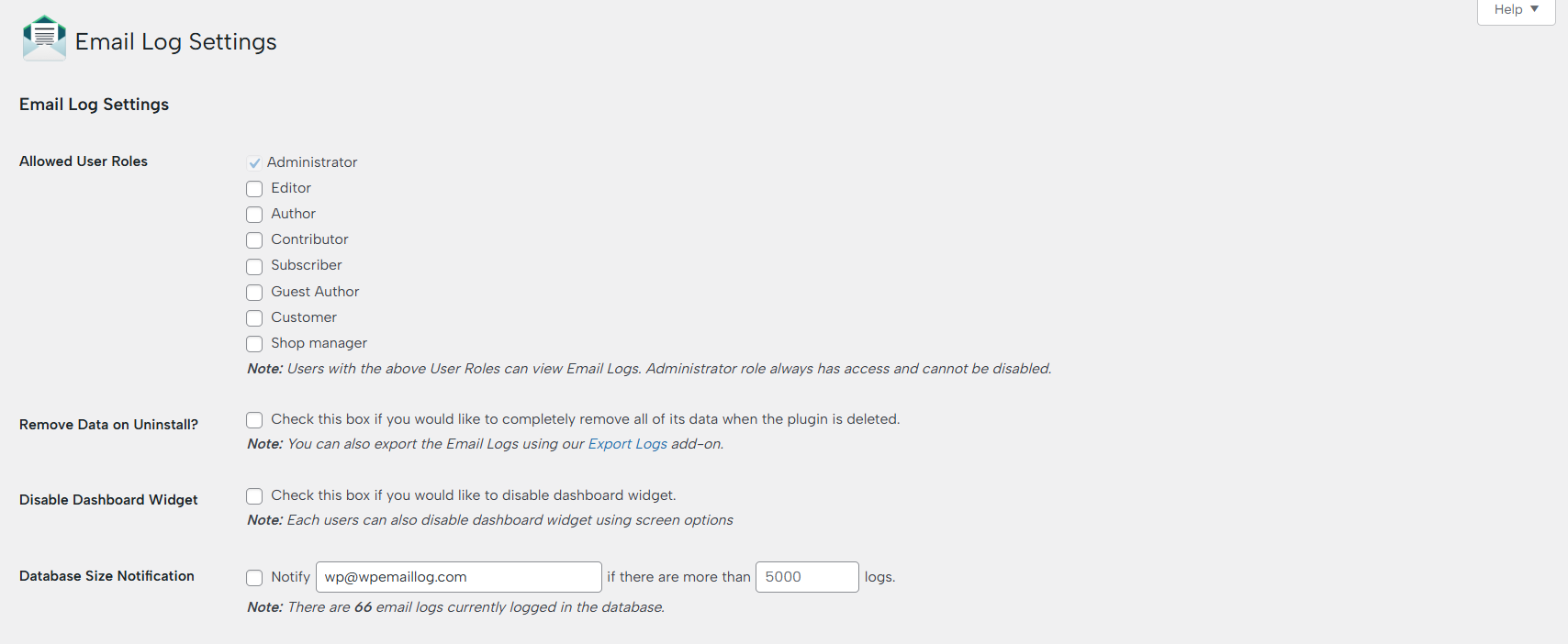
The Email Log Settings panel allows you to control access, data handling, and performance-related options for your email logs. These settings help you customize how logs are stored, managed, and viewed within your WordPress dashboard.
Allowed User Roles
Control which user roles can access the Email Logs page.
- Select one or more roles (e.g., Administrator, Editor, Author, etc.)
- Only selected roles will be able to view email logs
- Administrator access is always enabled by default and cannot be disabled
This ensures that sensitive email data is only accessible to authorized users.
Remove Data on Uninstall
Enable this option if you want to completely remove all plugin data when uninstalling.
- Deletes all stored email logs from the database
- Helps maintain a clean database after plugin removal
Note: If you need to keep a backup, you can export your logs using the Export Logs add-on before uninstalling.
Disable Dashboard Widget
This option allows you to disable the Email Logs dashboard widget.
- Prevents the widget from appearing on the WordPress dashboard
- Useful for reducing dashboard clutter or restricting visibility
Note: Individual users can also hide the widget from their own dashboard using Screen Options.
Database Size Notification
Stay informed about your database usage by enabling log size alerts.
- Enter an email address to receive notifications
- Set a threshold (e.g., 5000 logs)
- You will be notified when the number of stored logs exceeds this limit
This feature helps you proactively manage database size and maintain optimal website performance.
Why These Settings Matter
Proper configuration of Email Log Settings ensures:
- Controlled access to sensitive email data
- Efficient database management
- Better site performance
- Timely alerts to prevent excessive data buildup
Email Monitor

The Email Monitor feature ensures your WordPress site is reliably sending emails. It works in the background to detect delivery issues and notify you before they impact your users. Email failures often go unnoticed until users report missing messages. Email Monitor eliminates this risk by proactively tracking your email system and alerting you immediately when something goes wrong.
How It Works
Once enabled, the plugin automatically sends a daily “heartbeat” email to a monitoring system. This confirms that your website can successfully send emails.
- If the heartbeat is received > everything is working normally
- If no heartbeat is detected within a set period (e.g., 30 hours) > an alert is triggered
Key Features
Automatic Monitoring
Continuously checks your website’s email functionality without manual intervention.
Instant Alerts
Receive notifications if your site stops sending emails, helping you react quickly to issues such as:
- SMTP misconfiguration
- Server or hosting problems
- Email delivery failures
Test Email Option
You can send a test email at any time to verify that emails are being delivered correctly.
Auto Delete Logs

The Auto Delete Logs feature helps you manage database size by automatically removing old email logs after a defined period.
How It Works
You can configure the plugin to delete logs based on age:
- Automatically removes logs older than a specified number of days
- Runs in the background without affecting site performance
Benefits
Database Optimization
Prevents your database from growing too large due to accumulated email logs.
Improved Performance
Keeping log size under control ensures better overall site speed and responsiveness.
Hands-Free Maintenance
No need to manually clean up logs—everything is handled automatically.
Best Practice
Set a retention period that balances your needs:
- Shorter (e.g., 7–30 days) for high-traffic sites
- Longer (e.g., 60–90 days) for audit or debugging purposes
Forward Email Add-on Settings
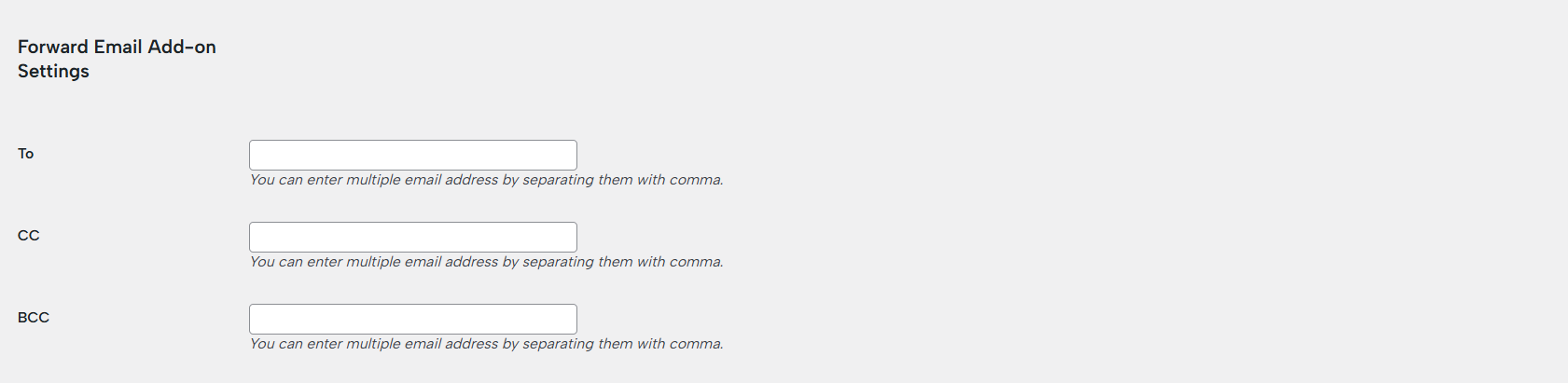
The Forward Email Add-on allows you to automatically send copies of outgoing emails to additional recipients.
How It Works
When enabled, every email sent from your WordPress site can be forwarded to one or more email addresses.
- Enter one or multiple email addresses
- Separate multiple recipients with a comma
Key Features
Email Forwarding
Automatically forward outgoing emails for monitoring, backup, or collaboration.
Multiple Recipients
Send copies to multiple team members or departments simultaneously.
Transparency & Oversight
Keep track of important communications such as:
- Contact form submissions
- WooCommerce order emails
- System notifications
Use Cases
- Team collaboration – Share emails with support or sales teams
- Backup purposes – Keep a secondary record of outgoing emails
- Monitoring activity – Track important site interactions in real time
Important Notes
- Forwarded emails are copies and do not affect the original delivery
- Ensure recipient inboxes are secure, as emails may contain sensitive data