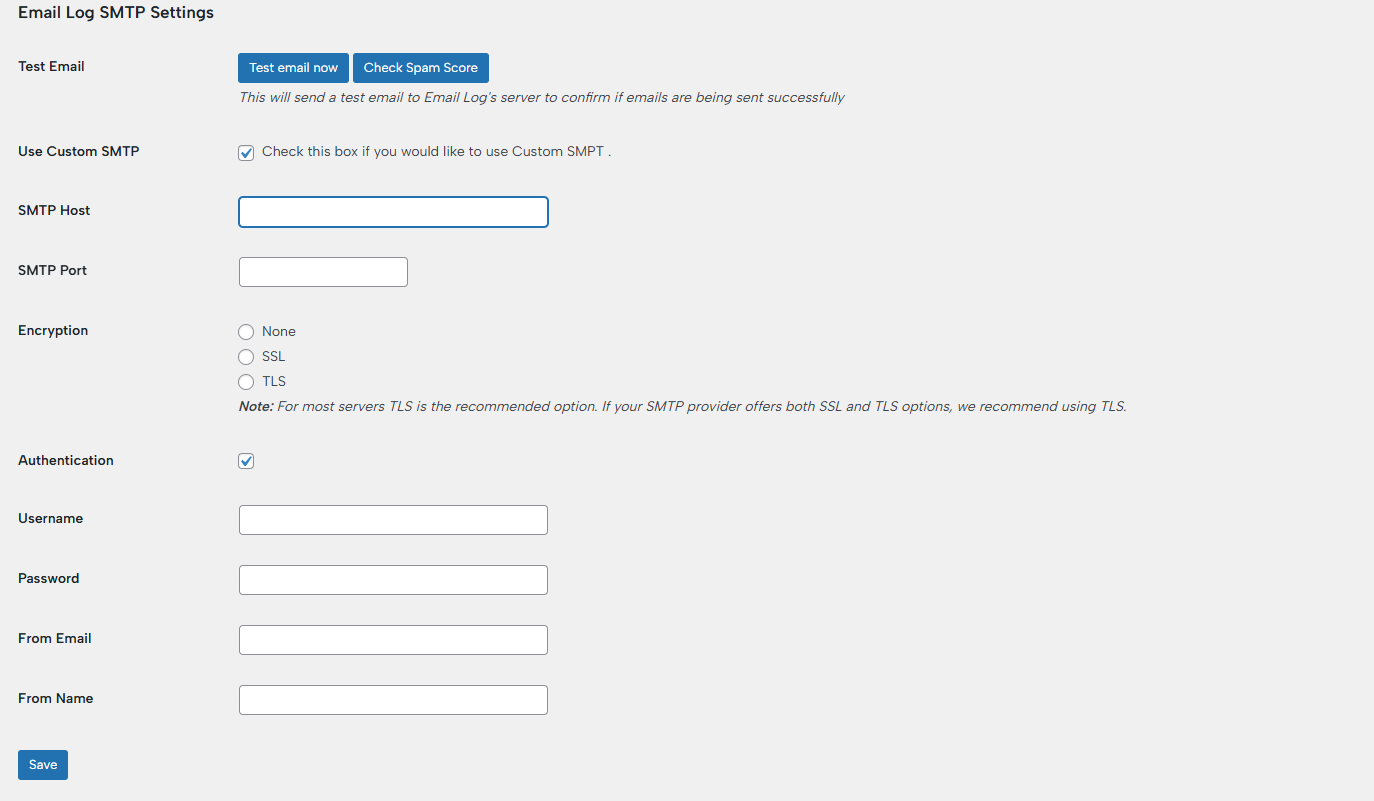
To connect Gmail SMTP in your WP Email Log Custom SMTP settings, you will need to use Gmail’s SMTP server details.
Gmail SMTP Settings
- First, you need to have ‘Use Custom SMTP’ checked.
- In the SMTP Host field, type smtp.gmail.com.
- In the SMTP Port field, type 587.
- For the Encryption, we recommend using TLS.
- Enable the ‘Authentication’ checkbox.
- In the ‘Username’ field, enter your full Gmail address.
- For the ‘Password’, you will need to use an App Password, and not your Gmail password (check the next section).
- In the ‘From Email’ box, you should use your Gmail address.
- In the ‘From Name’ box, you can type anything you want; for example, your site’s name.
Important: Use an App Password (Required)
Google no longer allows regular passwords for SMTP. You must generate an App Password:
Steps:
- Go to your Google account > Security
- Enable 2-Step Verification (required)
- Go to App Passwords
- Select:
- App: Mail
- Device: Other (name it like “WordPress”)
- Copy the password
- Paste it into the Password field in the WP Email Log custom SMTP settings.
Test It
After saving:
- Click “Test email now”
- You should receive a test email
Common Issues
- ❌ Wrong password > must be App Password
- ❌ Port 465 + TLS mismatch > use:
- 587 = TLS
- 465 = SSL
- ❌ From Email different from Gmail > may fail or go to spam
- ❌ Hosting blocking SMTP > contact your host