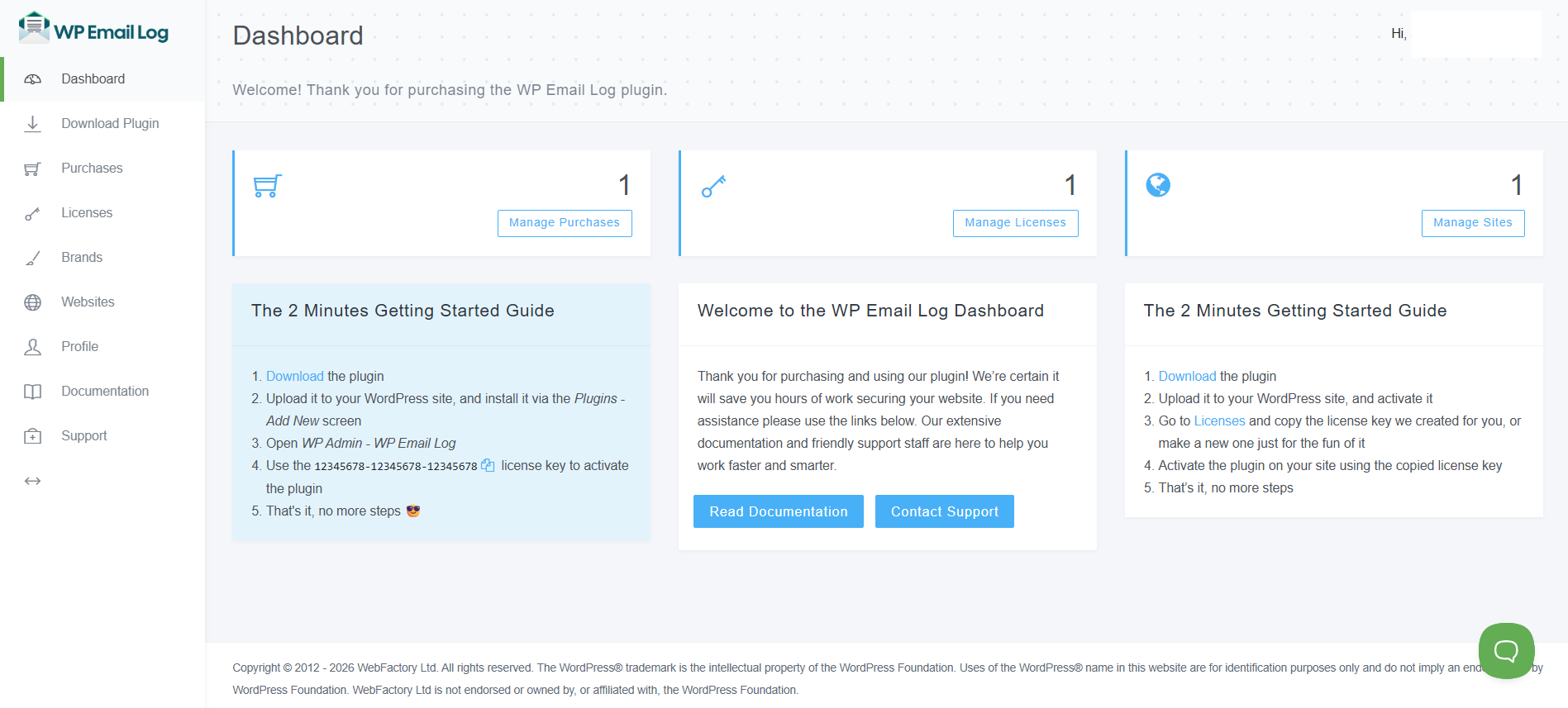
The Dashboard serves as the central hub of your plugin, giving you full control over all key aspects of your account and products. From one place, you can manage your licenses, connected sites, purchases, logs, branding settings, and more.
Instead of navigating through multiple pages or emails, the dashboard brings everything together in one convenient location. It simplifies plugin management, saves time, and ensures you always have full visibility and control over your setup.
Download the Invoice for the Purchase
If you need the invoice for your purchase, you can access it directly from the Purchases page.
- Go to Purchases in the Dashboard
- Click on the “View Invoice” button, after which you will be redirected to the Paddle page that holds your receipt
- Click on the “Add Address” button to edit your company or personal details (this is optional)
- Save the invoice or print it out
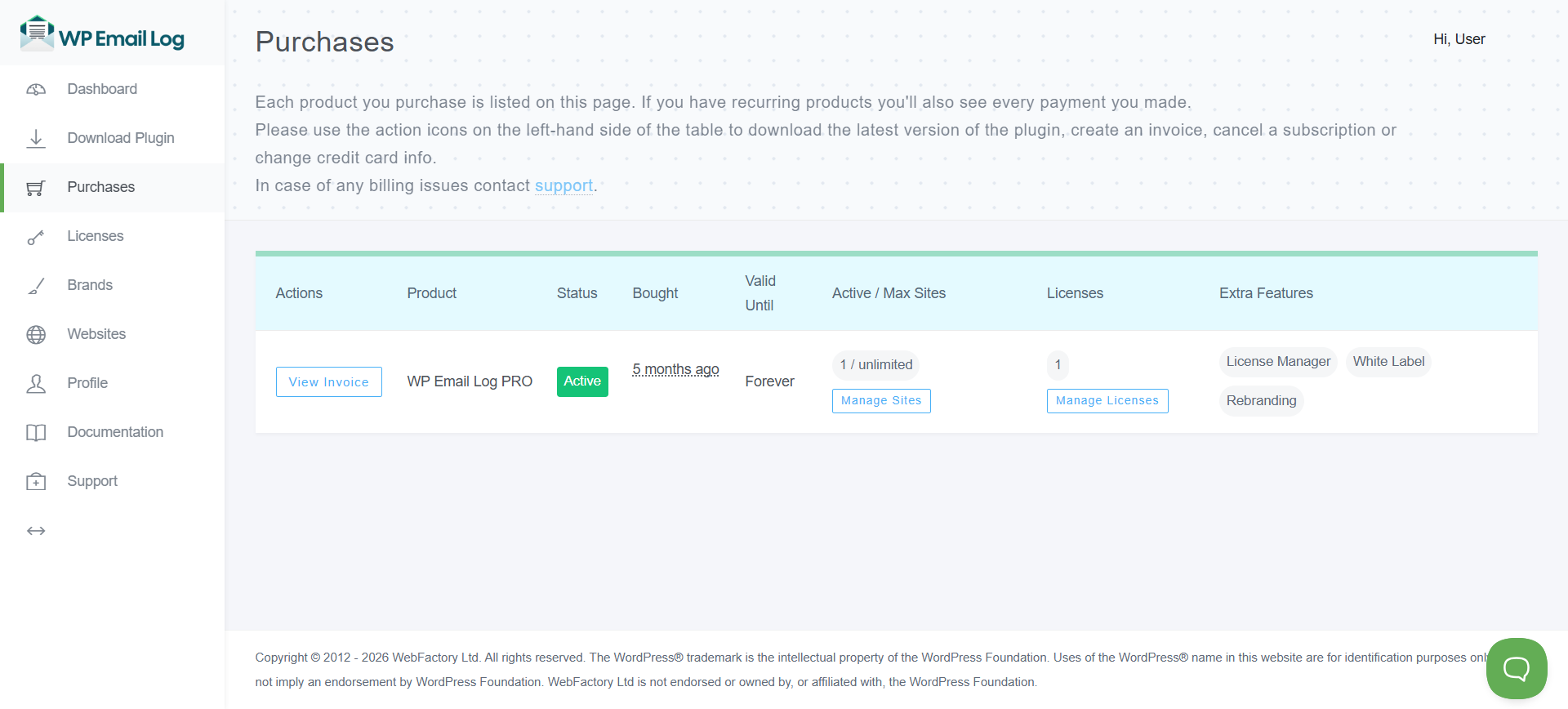
If you have any problems with the receipt or invoice, please don’t hesitate to contact support.
If you’re a first-time user, you’ll need to set up your account before logging in:
- Click on Reset Password using the email address you used during purchase
- Follow the instructions sent to your inbox
- Once your password is set, you can log in and access your dashboard
This ensures your account is secure and ready to use.
Add New License Key
After logging in to the dashboard, you will be able to create a new license that you can use to activate the plugin on new sites by clicking the “Add New License” button.
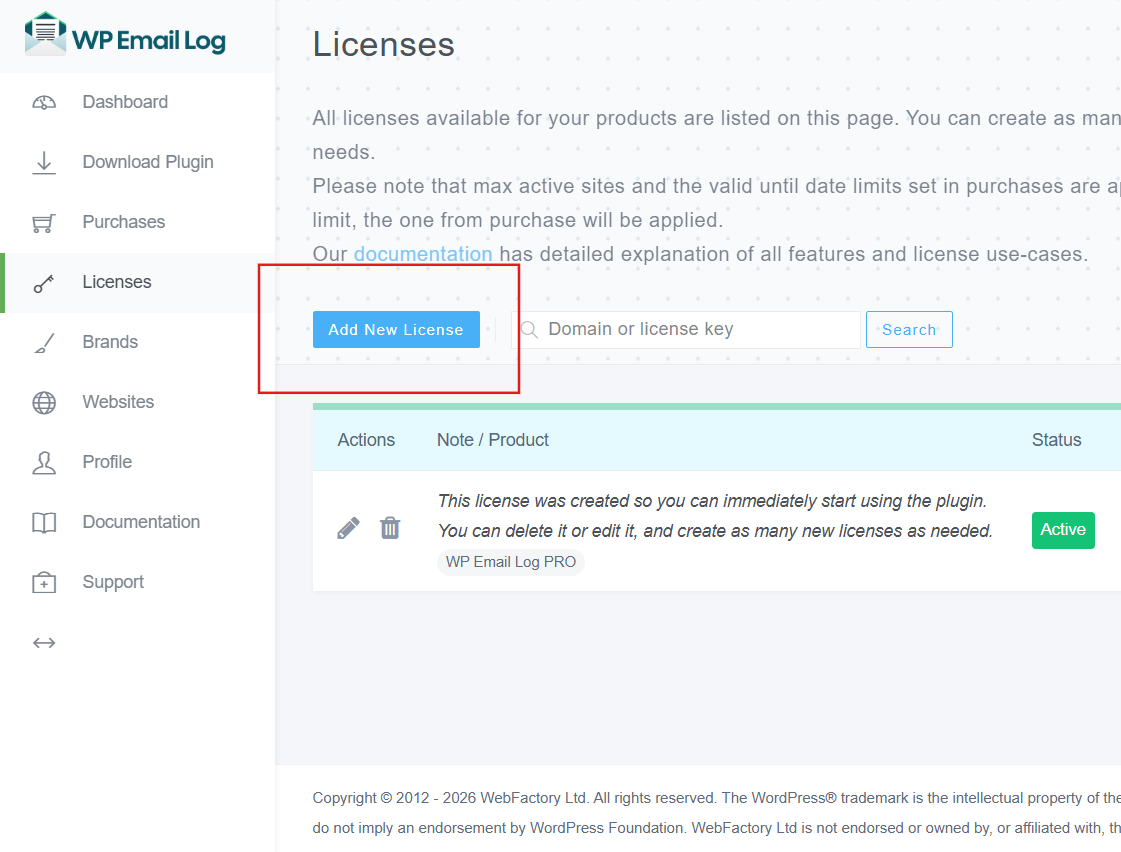
As soon as you click, a new settings page will appear, holding all the important options regarding licenses.
How to Add a New License Key
- Check the “Key” License Type
- If you want to use the key on more than one site, select the number in “Maximum Active Sites”.
- Select how long the license will be valid for.
- On the right-hand side of the screen, write a note to describe the licenses (optional).
- Add or remove any extra features that will be available for sites activated with this license.
- Choose a rebranding package (optional).
- Click on the “Create and Activate License” button at the bottom of the page.
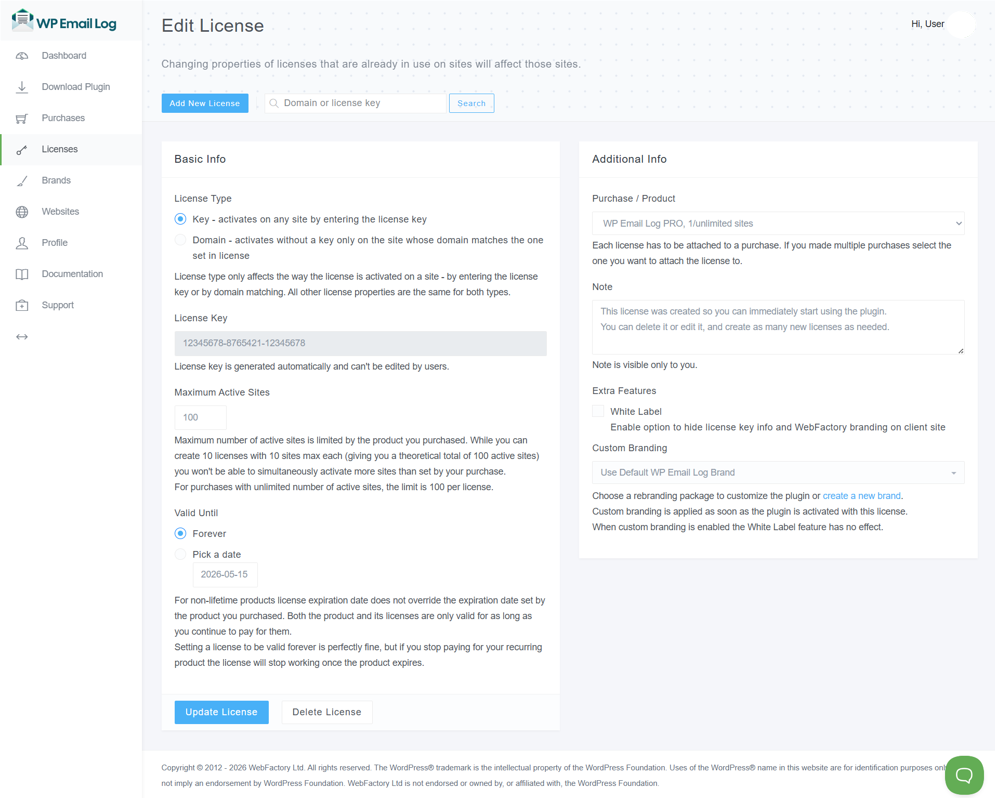
After you have created a license, you can go on to activate the WP Email Log plugin.
Maximum Active Sites
This option is only available when License Type: Key is selected.
Specify the maximum number of active sites allowed for this license key. For example, you can create 10 licenses with a limit of 10 sites each (a theoretical total of 100 sites), but the number of sites you can activate at the same time cannot exceed the limit included in your purchase.
For plans that include unlimited active sites, each license is capped at 100 sites. To activate more, you’ll need to create a new license and set its site limit again.
Valid Until
Choose how long the currently edited license will be valid:
- Forever – for lifetime products, this option makes the current license valid forever as well. For non-lifetime products, this option makes the current license valid until the date set by the product you purchase. For example, if you have subscribed to a product for only one year, setting this option to forever makes this license valid for that one year as well. In case you continue the subscription, the license will be automatically prolonged to the new date set by the date of purchase/subscription.
- Pick a Date – Click on the date to open a calendar. Simply choose a date until you want the license to be valid. For example, if you want a specific license to be valid only for two weeks on the client’s website, you can set the date and forget about it.
Delete License
Since you get to create as many licenses as you want (and can, depending on your purchase), sooner or later, some licenses will have to go.
- Go to Licenses in the dashboard
- Find the licenses you would like to remove
- In the same row, find & click the trashcan icon
- Confirm you want to delete the license
Deleting a license cannot be undone. Once you confirm the deletion, all sites using that license will immediately stop functioning. However, you can always generate new licenses and reactivate any affected sites if needed. Deleting a license does not impact your purchase in any way, and you will not lose what you paid for.
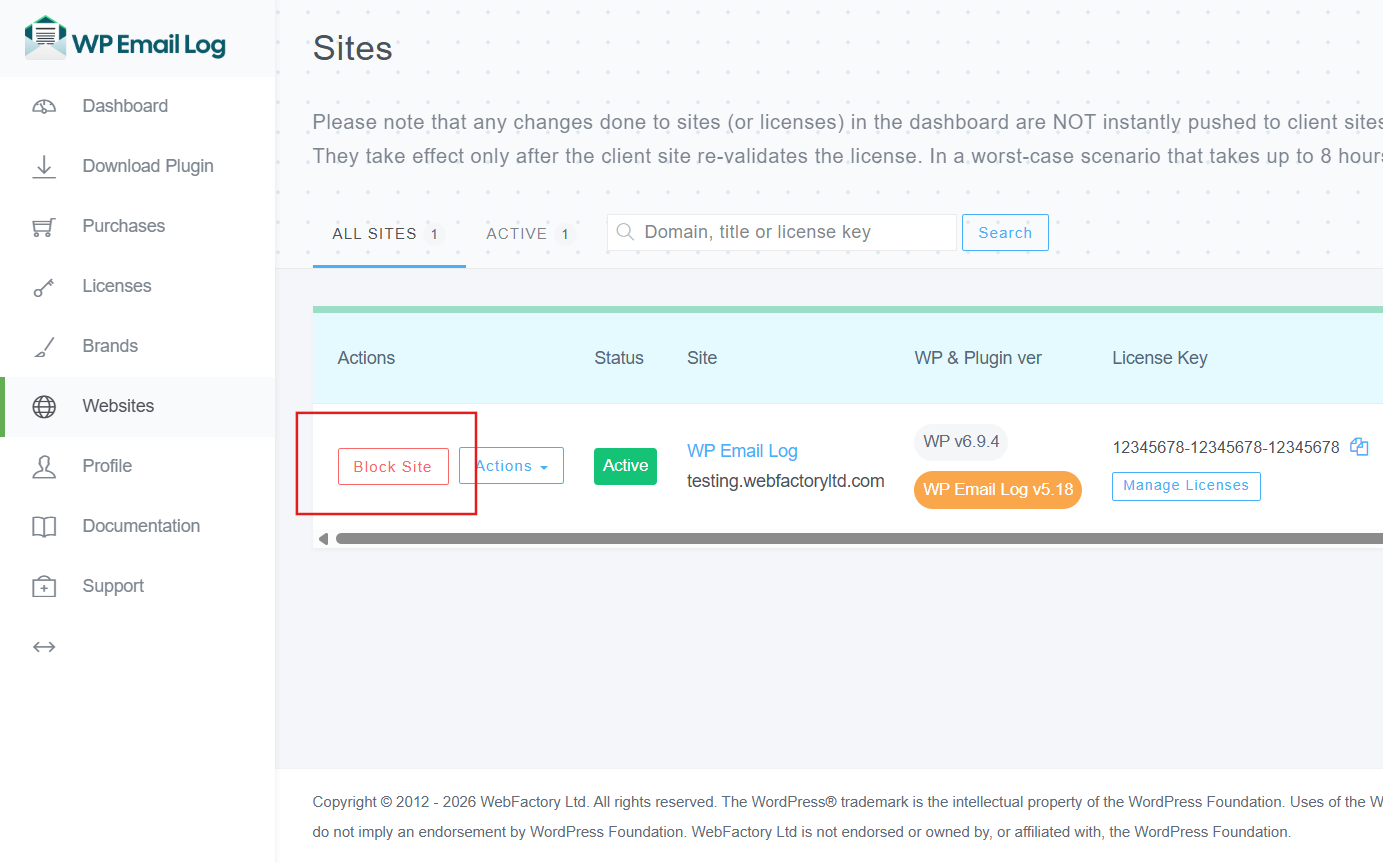
Block Site from Using a License
Even if you do not have access to a site that’s using one of your WP 301 Redirects licenses, you can quickly block that site from the Dashboard.
- Go to Websites in the dashboard
- Locate the site you wish to block
- Click on the “Block” button on the left side of the screen
- Confirm that you want to block the site
By blocking the site, the license will be immediately returned to the available pool of licenses, and the site will be deactivated next time it checks the license.
Profile
This profile page contains the key details of your account. Here, you can update your name, email, and password used to access the Dashboard.
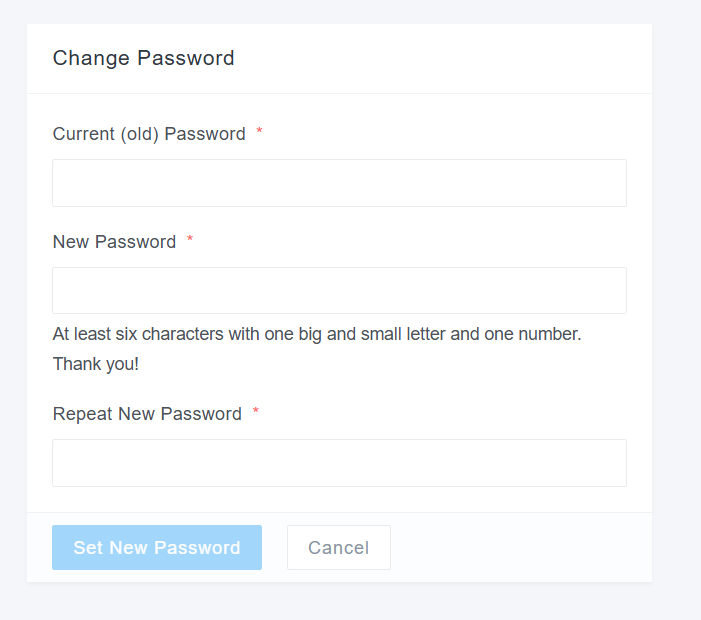
Change Password
When you first access the Dashboard, you will log in using the system-generated password. For better account security, it’s highly recommended to change your password as soon as possible and use a strong one.
- Go to the Profile in the dashboard
- Type the old password (the one you used to log in)
- Enter new password
- Repeat the new password
- Click on the “Set New Password” button to save changes
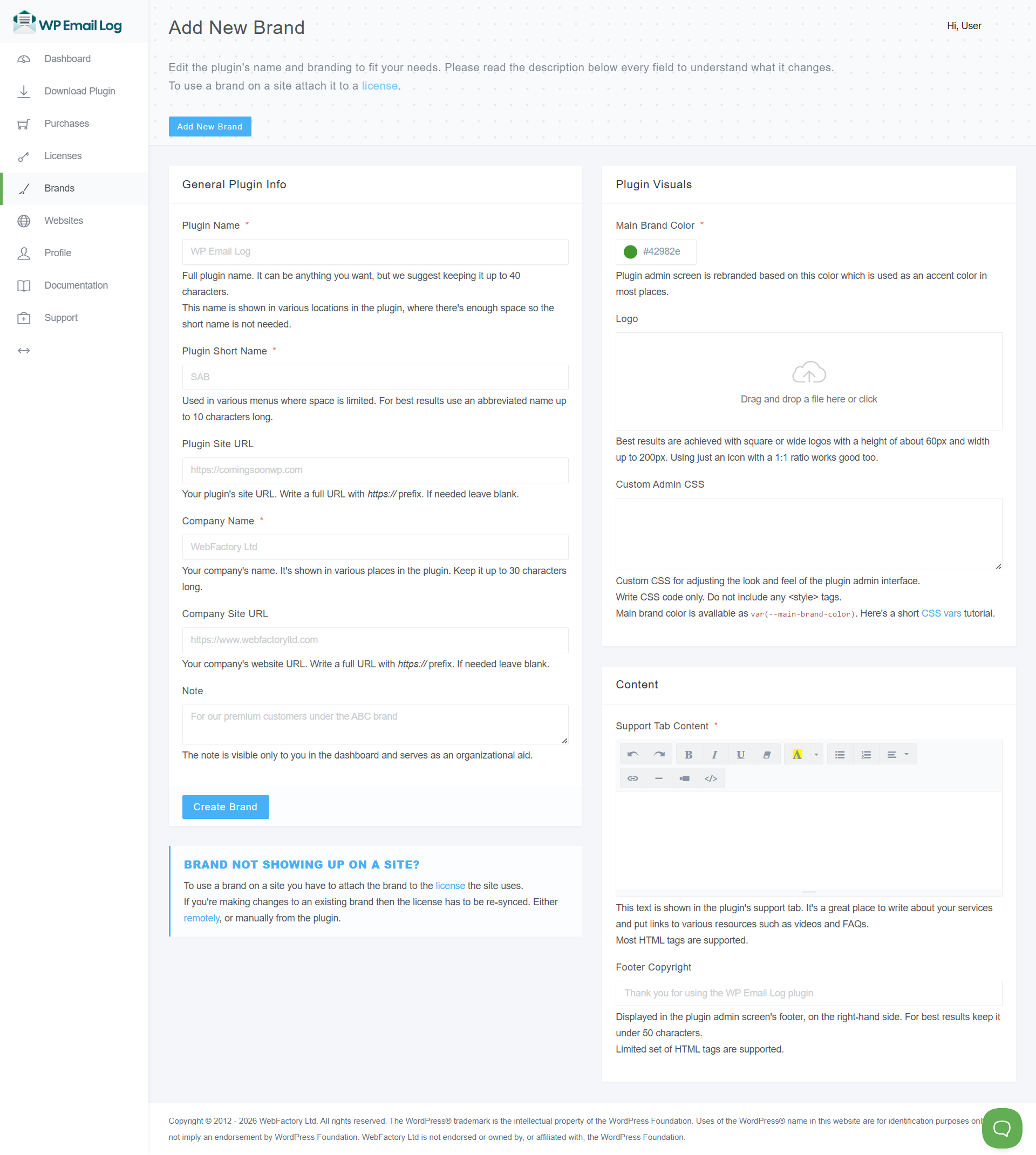
Custom Branding
When you create custom brands, you will be able to select one that will become active on all sites activated with this license. Custom branding is applied as soon as the plugin is activated with this license. When custom branding is enabled, the White Label feature has no effect.
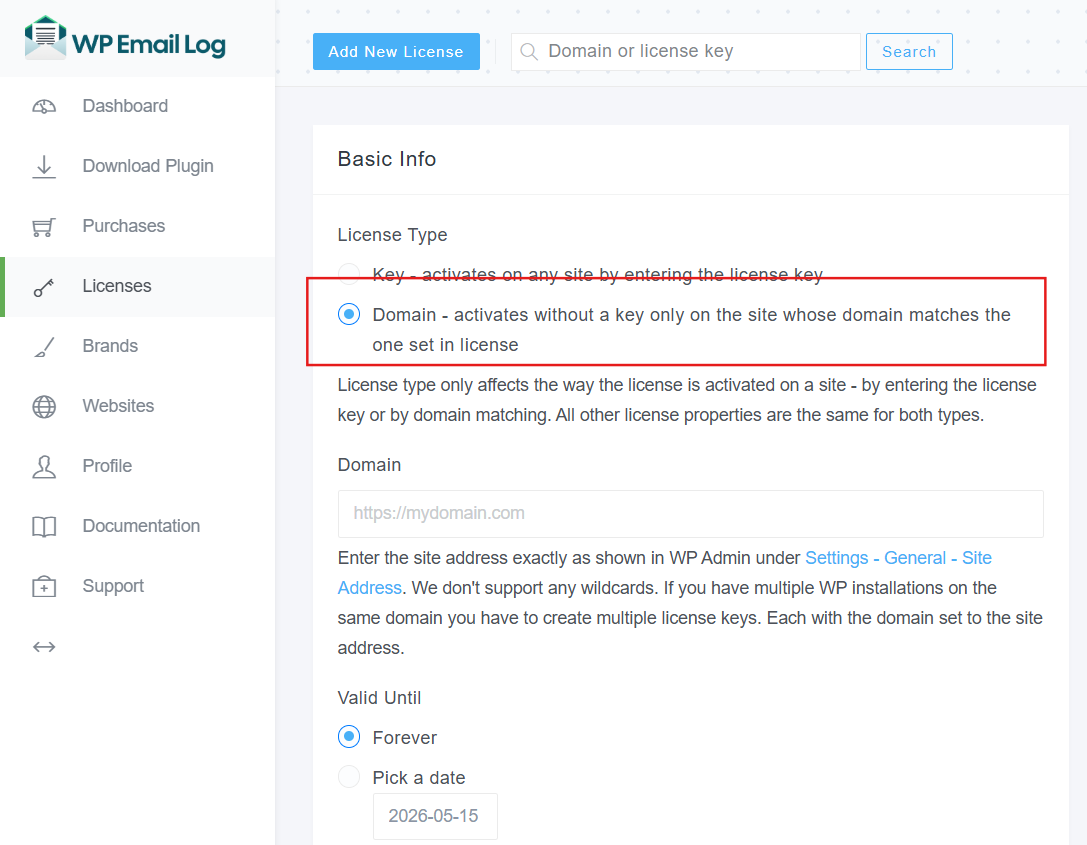
Keyless Activation (Domain-based key)
By clicking the blue “Add New License”, you will be able to create a new license that you can use to activate the plugin on new sites.
As soon as you click, a new settings page will appear, holding all the important options regarding licenses.
What You Can Do in the Dashboard – Summarized
The dashboard provides quick access to all essential tools and features, including:
- Manage Purchases – Access your orders, invoices, and subscription details
- Download Plugin – Easily download the latest version of your plugin
- License Management – Activate, deactivate, and manage your licenses
- Site Management – View and control the websites connected to your license
- Branding Options – Customize branding settings (if available)
- Profile Settings – Update your account details and preferences