
For many Mac users, iMovie has long been the default starting point for trimming clips, cutting scenes, and assembling simple videos. It is free, familiar, and good enough for basic projects. However, as video workflows become faster, more collaborative, and more platform-specific, many editors are moving away from iMovie and choosing dedicated video splitter tools that offer greater precision, broader format support, and more control over the editing process.
TLDR: Editors are replacing iMovie because it can feel limited when projects require fast splitting, batch processing, advanced export options, or professional timeline control. Tools such as DaVinci Resolve, LosslessCut, CapCut Desktop, and Filmora offer more flexible ways to divide, trim, and prepare video clips. The best choice depends on whether the editor values professional grading, lossless cutting, social media speed, or simple all-purpose editing.
Why iMovie Is No Longer Enough for Many Editors
iMovie remains a capable entry-level editor, especially for users who only need to make quick home videos, school projects, or simple YouTube uploads. Its interface is clean, its learning curve is gentle, and it works smoothly within the Apple ecosystem. Yet these same strengths can become limitations when editors need more advanced control.
The main issue is that iMovie is designed as a general consumer editor, not as a specialized video splitter. Splitting clips is easy, but managing many cuts efficiently, preserving original quality, working with diverse file types, or exporting multiple segments can become inconvenient. Editors who work with long interviews, podcasts, webinars, tutorials, lessons, gaming footage, or social media clips often need faster and more precise tools.
There is also the question of workflow maturity. A creator may begin with iMovie but eventually need features such as frame-accurate trimming, multiple export presets, batch handling, keyframe support, audio repair, or professional color correction. At that point, it becomes practical to replace iMovie with software built for heavier work.

What Editors Look for in a Better Video Splitter
Before comparing tools, it is useful to define what makes a video splitter better than iMovie for serious use. The right software should do more than simply cut a clip into pieces. It should help the editor save time, protect video quality, and prepare files for different platforms or clients.
- Precision: Editors need accurate cuts, especially when working with dialogue, music, or instruction-based content.
- Speed: Long videos should not require unnecessary rendering after every small cut.
- Format support: Modern footage may come from phones, cameras, screen recorders, drones, or livestream platforms.
- Export control: Editors often need multiple versions for YouTube, Instagram, TikTok, courses, ads, or internal review.
- Workflow flexibility: A splitter should fit into professional editing, archiving, repurposing, and publishing processes.
With those criteria in mind, four tools stand out as realistic iMovie replacements for editors who frequently split, trim, and prepare video clips.
1. DaVinci Resolve: Best for Professional Editors Who Need More Than Splitting
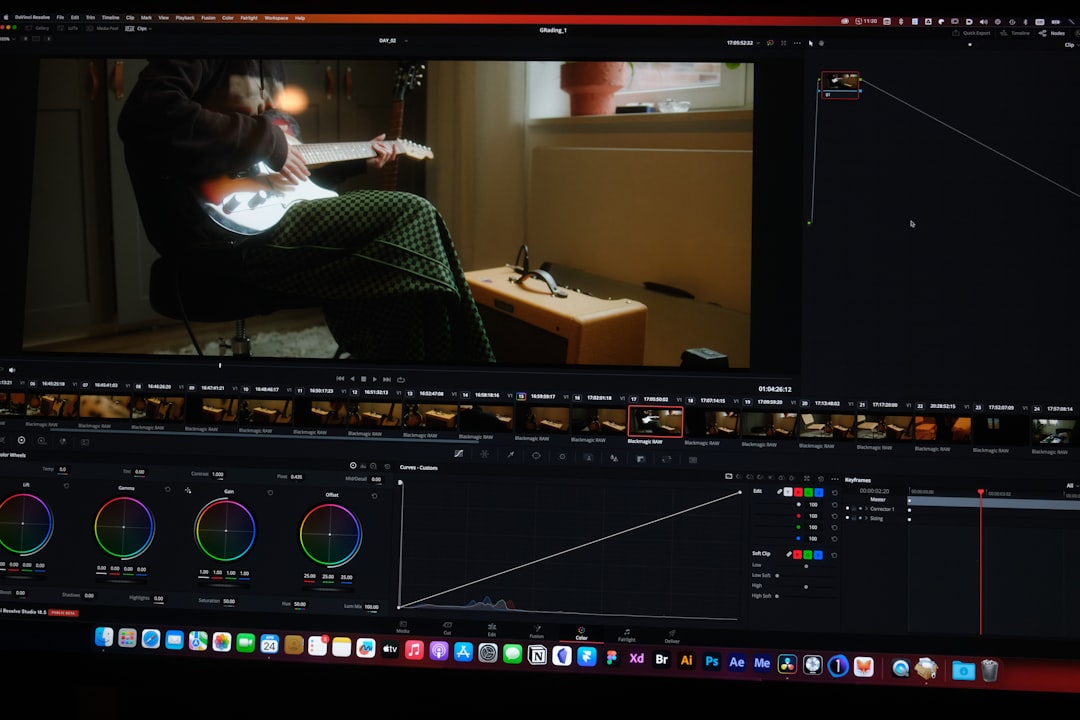
DaVinci Resolve is one of the strongest iMovie alternatives for editors who want professional-level control. While it is known for color grading, it is also a powerful editing platform with excellent cutting tools. Its Cut page is specifically designed for speed, making it suitable for editors who need to review footage, split clips, remove dead space, and build sequences quickly.
The biggest advantage of DaVinci Resolve is that splitting a video is only one part of a much broader workflow. After cutting clips, editors can fine-tune audio, correct color, add titles, apply transitions, and export in professional formats. This makes it a better long-term option for creators who expect their projects to grow in complexity.
Compared with iMovie, Resolve provides more control over timelines, tracks, project settings, media organization, and delivery formats. For example, an editor working on a documentary interview can split hours of footage into selects, organize clips into bins, clean up audio, and color match cameras without leaving the program.
The tradeoff is that DaVinci Resolve has a steeper learning curve. It is not the fastest choice for someone who only wants to cut one file into three parts. However, for editors who want a serious replacement for iMovie, it is hard to ignore. The free version is already highly capable, and the paid Studio version adds advanced features for demanding workflows.
2. LosslessCut: Best for Fast, Quality Preserving Splits
LosslessCut is very different from iMovie and DaVinci Resolve. It is not trying to be a complete creative editing suite. Instead, it focuses on one important task: cutting video quickly without unnecessary re-encoding. This makes it especially valuable when an editor wants to split large files while preserving the original quality.
For many practical workflows, this is a major advantage. Re-encoding can reduce quality, increase processing time, and create larger or less predictable files. LosslessCut helps avoid those problems by cutting streams directly where possible. This is useful for trimming recordings, removing unwanted sections, extracting highlights, or breaking long footage into smaller clips before moving them into another editor.
Editors working with webinars, lectures, surveillance footage, livestream archives, or screen recordings may find LosslessCut more efficient than iMovie. Instead of importing footage into a traditional editing project and exporting a new version, they can make quick cuts and save segments with minimal delay.
The tool is also appealing because of its simplicity. The interface is not as polished as iMovie, but it is direct and purpose-built. Editors who understand exactly what they need can move quickly. That said, LosslessCut is not a replacement for iMovie if the project requires titles, effects, music mixing, transitions, or detailed storytelling. Its strength is technical efficiency, not creative editing.
3. CapCut Desktop: Best for Social Media Editors and Fast Repurposing
CapCut Desktop has become popular among creators who need to produce short-form videos quickly. While many people associate it with mobile editing, the desktop version has matured into a practical tool for splitting, trimming, captioning, and formatting content for social platforms.
One reason editors replace iMovie with CapCut is speed. Social media workflows often involve taking a long video and turning it into several shorter clips. A podcast episode may become ten vertical highlights. A tutorial may become a series of short tips. A product demo may be split into platform-specific ads. CapCut supports this type of repurposing with a modern interface and features designed around online publishing.
CapCut also offers tools that iMovie users often wish they had built in, including automatic captions, background removal, templates, effects, and easy aspect ratio changes. For creators publishing to TikTok, Instagram Reels, YouTube Shorts, or similar channels, these features can reduce the need for multiple applications.
However, CapCut is not ideal for every serious editor. Some professionals may prefer tools with stronger project management, more reliable archival workflows, or deeper export control. Privacy and account-related considerations may also matter for business users. Still, for creators whose main goal is to split and repackage content quickly for social distribution, CapCut is a compelling iMovie alternative.
4. Filmora: Best for Editors Who Want Simplicity With More Features
Filmora often appeals to users who like iMovie’s simplicity but need a broader feature set. It provides an approachable editing environment while adding more effects, transitions, export options, screen recording features, and platform-friendly tools. For many creators, it occupies a middle ground between basic consumer editing and professional software.
As a video splitter, Filmora makes it easy to cut clips, remove unwanted sections, rearrange scenes, and export finished videos without a steep learning process. This is useful for educators, small business owners, marketers, and YouTubers who need dependable editing tools but do not want the complexity of a full professional suite.
Filmora also includes features that help after the splitting stage. Editors can add lower thirds, music, voiceovers, titles, motion elements, and simple color adjustments. This matters because most projects do not end at the cut. After a video is split into useful pieces, it often needs branding, pacing, captions, and final polish.
The main consideration is cost and workflow depth. Filmora may be easier than DaVinci Resolve, but it may not satisfy editors who require high-end color grading, advanced audio post-production, or complex multi-camera editing. Even so, for users graduating from iMovie, it offers a familiar style with more room to grow.

How These Tools Compare to iMovie
The reason editors are leaving iMovie is not that iMovie is poor software. Rather, it is that different editing jobs now demand more specialized solutions. iMovie works well when a project is simple, but it becomes less efficient when an editor repeatedly handles large files, multiple formats, platform-specific exports, or professional finishing tasks.
- Choose DaVinci Resolve if you need professional editing, color grading, audio tools, and long-term workflow scalability.
- Choose LosslessCut if your priority is fast splitting with minimal quality loss and little interest in effects or design.
- Choose CapCut Desktop if you create short-form social videos and need captions, resizing, templates, and quick repurposing.
- Choose Filmora if you want an easy editor that feels accessible but offers more features than iMovie.
This range of options reflects a broader shift in video editing. Editors no longer need one tool for every task. A professional may use LosslessCut to prepare raw footage, DaVinci Resolve to finish a main project, and CapCut to create short clips for social media. The replacement for iMovie is often not a single application but a more efficient toolkit.
Final Verdict
Editors are replacing iMovie because modern video work has become more demanding, more fragmented, and more time-sensitive. Simple splitting is no longer enough. Editors need tools that can preserve quality, speed up repetitive tasks, support multiple platforms, and scale with their creative or professional goals.
DaVinci Resolve, LosslessCut, CapCut Desktop, and Filmora each solve a different problem that iMovie does not fully address. The best choice depends on the editor’s priorities: professional control, lossless speed, social media output, or accessible all-purpose editing. For anyone regularly cutting and repurposing video, these tools offer a more serious and efficient path forward than relying on iMovie alone.