It can be frustrating—and sometimes alarming—when you suddenly can’t type in your Messages app. Whether you rely on messaging for work, family communication, or two-factor authentication codes, losing the ability to type interrupts your day and prevents important conversations from happening. Fortunately, this issue is usually solvable with a few targeted troubleshooting steps.
TL;DR: If you can’t type in Messages, the cause is typically a software glitch, keyboard malfunction, outdated app, or system bug. Restarting your device, updating the app or operating system, checking keyboard settings, and clearing cache often resolve the issue. If the problem persists, deeper solutions like resetting settings or reinstalling the app may be required. Most cases can be fixed in under 15 minutes.
Common Reasons You Can’t Type in Messages
Before applying fixes, it helps to understand what may be causing the issue. The inability to type usually stems from one of the following problems:
- Keyboard malfunction or crash
- App glitch or corrupted cache
- Outdated Messages app
- Operating system bug
- Third-party keyboard conflicts
- Low storage space
- Frozen or unresponsive screen
Identifying the root cause will help you resolve the issue more efficiently.
1. Restart Your Device
This should always be your first step. Temporary software glitches often interfere with the keyboard or messaging app. Restarting clears memory and refreshes system processes.
How to restart:
- On iPhone: Hold the side button + volume button, then slide to power off.
- On Android: Hold the power button and tap Restart.
After rebooting, open Messages again and test the keyboard.
2. Check If the Keyboard Is Working in Other Apps
Open another app—such as Notes, Email, or a web browser—and try typing.
- If the keyboard doesn’t work anywhere, the issue is likely system-wide.
- If it only fails inside Messages, the app itself may be the problem.
This simple test narrows down the diagnosis significantly.
3. Force Close the Messages App
Apps occasionally freeze in the background. Force closing and reopening Messages can clear temporary errors.
Steps:
- Swipe up from the bottom (or use Recent Apps on Android).
- Find the Messages app.
- Swipe it away to close.
- Reopen the app and try typing again.
4. Update the Messages App
Outdated apps often contain bugs that interfere with typing functionality.
To check for updates:
- Open the App Store (iPhone) or Google Play Store (Android).
- Search for your Messages app.
- Tap Update if available.
After updating, test the app again. Many typing issues are resolved through routine updates.
5. Update Your Operating System
If updating the app doesn’t help, your phone’s operating system could be the source of the problem. System-level bugs sometimes break keyboard functionality.
Check for OS updates:
- iPhone: Settings → General → Software Update
- Android: Settings → System → Software Update
Install any available updates and restart your device.
6. Check Keyboard Settings
Misconfigured keyboard settings may prevent typing.
On iPhone:
- Go to Settings → General → Keyboard
- Ensure a keyboard is enabled
On Android:
- Settings → System → Languages & Input → On-screen keyboard
- Confirm a default keyboard is selected
If you use a third-party keyboard, try switching back to the default keyboard temporarily.
7. Remove and Reinstall the Messages App (If Possible)
In some cases, reinstalling the app resolves corrupted files.
Important: Some default messaging apps cannot be deleted. If yours can:
- Delete the app
- Restart the phone
- Reinstall it from the app store
This forces the app to install clean files and settings.
8. Clear App Cache (Android Only)
Android users have a powerful troubleshooting option: clearing cache.
Steps:
- Go to Settings → Apps → Messages
- Tap Storage
- Select Clear Cache (not Clear Data initially)
Clearing cache removes temporary files without deleting conversations.
9. Check Available Storage Space
If your phone has extremely low storage, apps may malfunction.
Check storage:
- iPhone: Settings → General → iPhone Storage
- Android: Settings → Storage
Free up space by deleting:
- Unused apps
- Large videos
- Old downloads
Low storage often affects keyboard responsiveness.
10. Disable Third-Party Keyboards
Third-party keyboards sometimes crash or conflict with messaging apps.
Try switching to the default keyboard:
- Remove additional keyboards temporarily
- Restart the phone
- Test the Messages app again
If typing works afterward, the third-party keyboard was likely responsible.
11. Reset Keyboard Dictionary
Corrupted learned words can occasionally cause keyboard glitches.
iPhone: Settings → General → Transfer or Reset → Reset → Reset Keyboard Dictionary
Android: Settings → System → Languages & Input → Virtual Keyboard → Reset Settings
Note: This removes saved custom words.
12. Test in Safe Mode (Android)
Safe Mode disables third-party apps temporarily.
- Hold the power button
- Press and hold Power Off
- Select Safe Mode
If typing works in Safe Mode, a third-party app is interfering.
When the Issue May Be Hardware-Related
If:
- The touchscreen is unresponsive
- The keyboard doesn’t appear at all
- You notice screen flickering
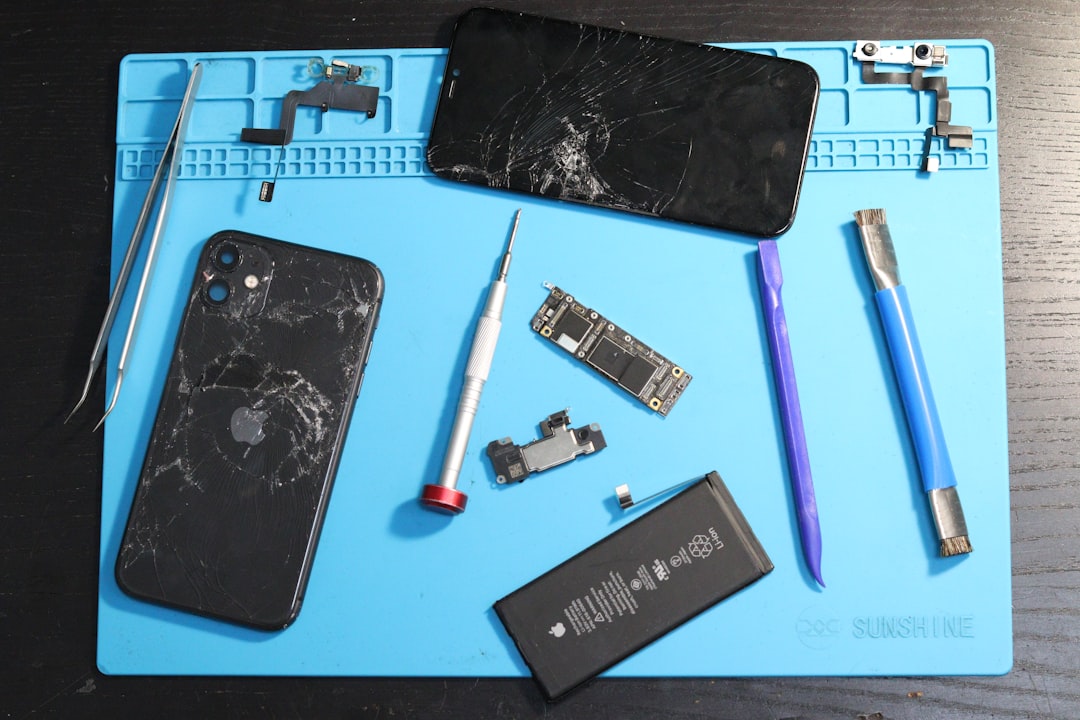
You may be dealing with a hardware problem rather than software.
In that case:
- Remove any screen protector
- Clean the screen
- Contact a certified repair technician
Troubleshooting Comparison Chart
| Solution | Time Required | Technical Difficulty | Best For |
|---|---|---|---|
| Restart Device | 2–3 minutes | Very Easy | Minor glitches |
| Force Close App | 1–2 minutes | Very Easy | App freezing |
| Update App/OS | 5–15 minutes | Easy | Bug fixes |
| Clear Cache (Android) | 3–5 minutes | Easy | Corrupted temporary files |
| Reinstall App | 5–10 minutes | Moderate | Deep app corruption |
| Reset Settings | 10–15 minutes | Moderate | Persistent software issues |
When to Contact Support
If none of the above solutions work, consider:
- Contacting Apple Support or your Android manufacturer
- Visiting an authorized repair center
- Backing up your device and performing a factory reset (last resort)
Important: Always back up your data before performing major resets.
Preventing the Issue in the Future
To reduce the likelihood of future typing problems:
- Keep your apps updated
- Install system updates promptly
- Avoid installing unverified keyboard apps
- Regularly restart your phone
- Maintain at least 10–15% free storage
Proactive maintenance significantly lowers the chance of performance disruptions.
Final Thoughts
Being unable to type in Messages can feel urgent, especially when communication is time-sensitive. However, in most situations, the issue stems from manageable software glitches rather than serious hardware failure. By methodically applying the steps above—starting with simple fixes like restarting your device and progressing to deeper troubleshooting—you can usually restore functionality quickly.
If the issue persists despite these efforts, professional evaluation may be necessary. The key is to remain systematic and avoid unnecessary resets until simpler solutions are ruled out.
With careful troubleshooting, you can regain full messaging functionality and prevent the problem from recurring.