Encountering the error “MPUException: No MPUs Detected” in imu.py can be frustrating, especially when your project depends on accurate motion sensing from an MPU6050, MPU9250, or similar inertial measurement unit (IMU). This error typically indicates that your software cannot detect the sensor hardware over the I2C bus. While alarming at first glance, the issue is usually caused by configuration, wiring, or permission problems rather than defective hardware.
TL;DR: The “MPUException: No MPUs Detected” error almost always results from I2C communication failure between your system and the MPU sensor. Verify wiring connections, confirm I2C is enabled, check the sensor’s I2C address, and ensure required dependencies are installed correctly. Use tools like i2cdetect to confirm device visibility. Systematic troubleshooting will resolve most cases without replacing hardware.
Understanding the Error
The exception MPUException: No MPUs Detected is raised when your Python script—often using libraries such as smbus or mpu6050—fails to communicate with any compatible devices on the I2C bus. In practical terms, your program attempts to initialize the IMU but receives no valid response.
Common environments where this occurs include:
- Raspberry Pi projects
- Embedded Linux systems
- Robotics control boards
- Custom SBC deployments
Before assuming the sensor is defective, understand that I2C communication issues are far more common than hardware failure.
Step 1: Verify Physical Connections
The most frequent cause of this error is improper wiring.
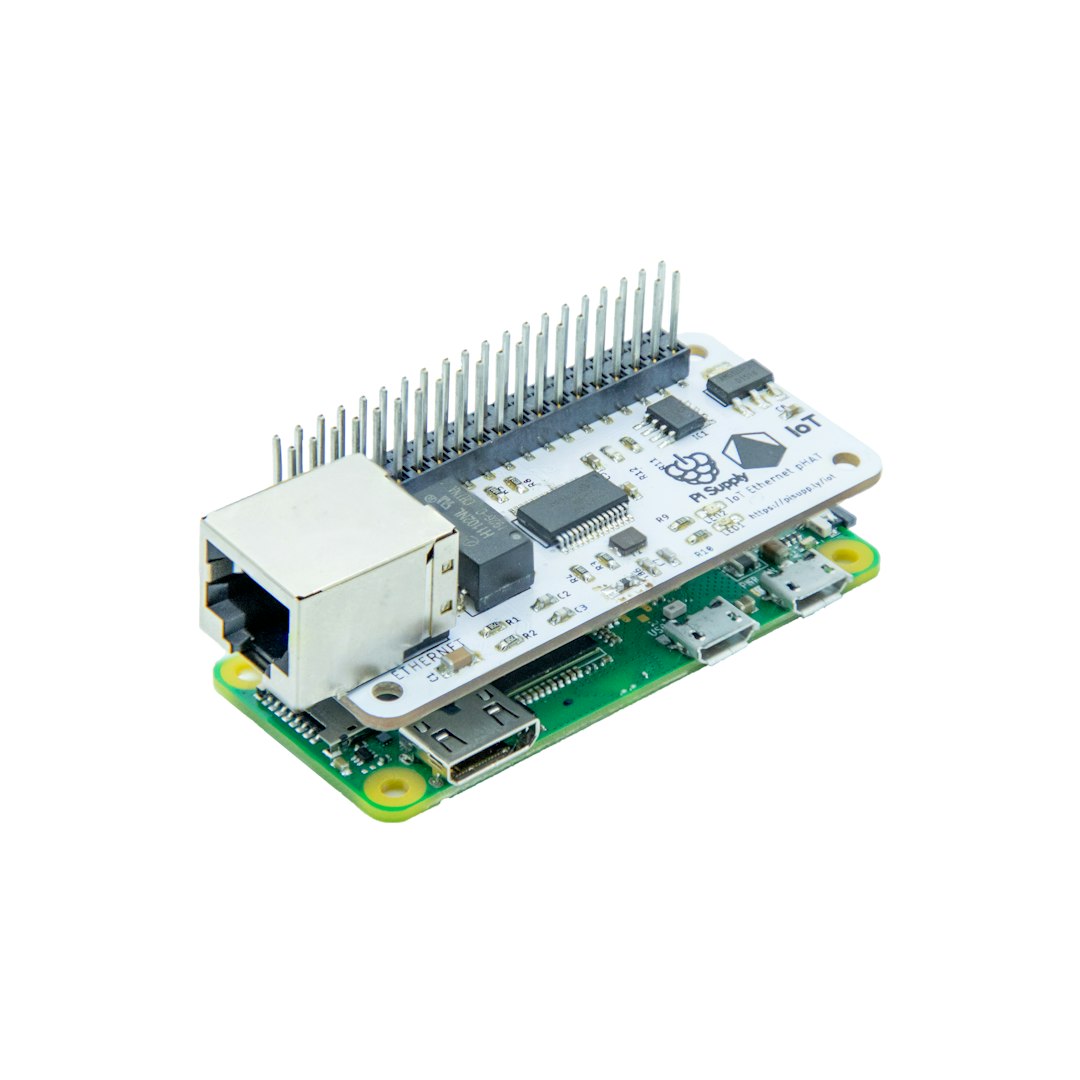
For an MPU6050 connected to a Raspberry Pi, ensure the following:
- VCC → 3.3V (not 5V unless your module supports it)
- GND → Ground
- SDA → GPIO2 (Pin 3)
- SCL → GPIO3 (Pin 5)
Important checks:
- No loose jumper wires
- No reversed connections
- No damaged breadboard rows
- Proper logic level compatibility (3.3V vs 5V)
If you are using long jumper wires, replace them with shorter ones to eliminate signal degradation.
Step 2: Confirm I2C Is Enabled
If the wiring is correct but the device is still not detected, confirm that I2C is enabled in your operating system.
On Raspberry Pi:
- Run sudo raspi-config
- Select Interface Options
- Enable I2C
- Reboot the device
After rebooting, verify that the I2C modules are loaded:
lsmod | grep i2cIf nothing appears, manually load them:
sudo modprobe i2c-devThis ensures your kernel can communicate with I2C devices.
Step 3: Use i2cdetect to Confirm Device Visibility
Before debugging your Python script, confirm the system actually sees the sensor.
sudo apt install i2c-tools
sudo i2cdetect -y 1
You should see an address such as:
- 0x68 (default for MPU6050)
- 0x69 (if AD0 pin is pulled high)
If no address appears:
- The wiring is incorrect
- The module is not powered
- The sensor may be defective
If the address appears, the hardware layer is functioning properly and you can proceed to software troubleshooting.
Step 4: Check the I2C Address in Your Code
A surprisingly common mistake is using the wrong I2C address in imu.py.
Example:
mpu = MPU6050(address=0x68)If your i2cdetect scan shows 0x69, modify your code accordingly.
This small mismatch alone can trigger the MPUException: No MPUs Detected error because the script searches for a device at the wrong address.
Step 5: Verify Python Dependencies
If the hardware is visible but the exception persists, confirm all required packages are installed.
Common dependencies include:
- smbus or smbus2
- mpu6050 library
- numpy (in advanced filtering implementations)
Install them using:
sudo apt install python3-smbus
pip3 install smbus2 mpu6050-raspberrypi
Ensure your script runs with Python 3 if the library supports it. Mixing Python 2 and Python 3 environments can cause driver detection failures.
Check your version:
python3 --versionStep 6: Confirm User Permissions
Limited permissions can prevent access to I2C resources.
Add your user to the i2c group:
sudo adduser $USER i2c
sudo reboot
This ensures your Python script can access /dev/i2c-1 without restriction.
Step 7: Test with a Minimal Script
Before running your full imu.py, test with a stripped-down script:
from mpu6050 import mpu6050
sensor = mpu6050(0x68)
print(sensor.get_accel_data())
If this works, the problem lies in your larger implementation rather than system-level communication.
Step 8: Inspect IMU Power and Module Integrity
If all software checks pass but the sensor remains undetected:
- Test voltage output with a multimeter
- Look for overheating components
- Try another MPU module if available
Cheaper clone modules sometimes fail due to poor soldering or defective voltage regulators.
Step 9: Disable Conflicting Devices
Some systems use I2C for devices like RTC modules or OLED displays. Address conflicts can cause detection inconsistencies.
Ensure:
- No duplicate device addresses exist
- No overlays in /boot/config.txt interfere with I2C
Review your configuration file carefully.
Step 10: Review imu.py Logic
Advanced users should inspect the actual exception handling in imu.py. Sometimes the message “No MPUs Detected” is raised after a failed WHO_AM_I register check.
The expected response for an MPU6050 typically includes a specific device ID. If your code queries the wrong register or uses an incorrect bus number (for example, 0 instead of 1 on newer Raspberry Pi boards), the check will fail.
Correct bus initialization example:
bus = smbus.SMBus(1)Older boards used bus 0, so ensure compatibility.
Common Root Causes Summary
To consolidate, here are the most frequent causes:
- Incorrect wiring
- I2C not enabled
- Wrong I2C address in code
- Missing Python dependencies
- Insufficient user permissions
- Faulty sensor module
In professional practice, over 80% of reported cases trace back to wiring or disabled I2C interfaces.
Preventing Future Detection Issues
Adopt these preventive practices:
- Label wiring connections during assembly
- Verify device visibility with i2cdetect before coding
- Maintain consistent Python environments using virtualenv
- Document your hardware configuration
Establishing a structured diagnostic routine significantly reduces integration downtime in robotics or embedded systems projects.
Final Thoughts
The “MPUException: No MPUs Detected” error may appear critical, but it is almost always solvable through disciplined troubleshooting. Start with hardware validation, confirm I2C functionality, verify addresses, and only then move to deeper software inspection. Random guessing or replacing components prematurely wastes time and resources.
By following the systematic steps outlined above, you can confidently restore communication between your imu.py application and your MPU sensor. In embedded systems engineering, reliability stems from methodical validation—not assumption. Treat this error as a signal to verify your I2C communication chain end-to-end, and resolution will nearly always follow.