The Noctua NH-D15 is a beast of an air cooler. It’s big, powerful, and keeps CPUs icy cool even during heavy gaming or rendering. But that size? It can cause some headaches when it gets too cozy with your RAM or GPU slots.
TLDR:
The Noctua NH-D15 is great for cooling, but it’s huge. The cooler can block your RAM slots or the first PCIe slot on your motherboard. You can fix this by raising the front fan, going with low-profile RAM, or adjusting positioning. Planning your build carefully saves time and frustration.
Why the NH-D15 Gets in the Way
The NH-D15 isn’t your average cooler. It has two giant heatsinks and a pair of 140mm fans. While that means super cool temps, it also means it eats up space around the CPU socket.
There are two common issues builders face:
- RAM clearance. The front fan can hang over RAM slots.
- PCIe clearance. The heatsink sometimes creeps into the top graphics card slot.
Let’s dig into both problems and how to fix them.
Problem 1: RAM Clearance
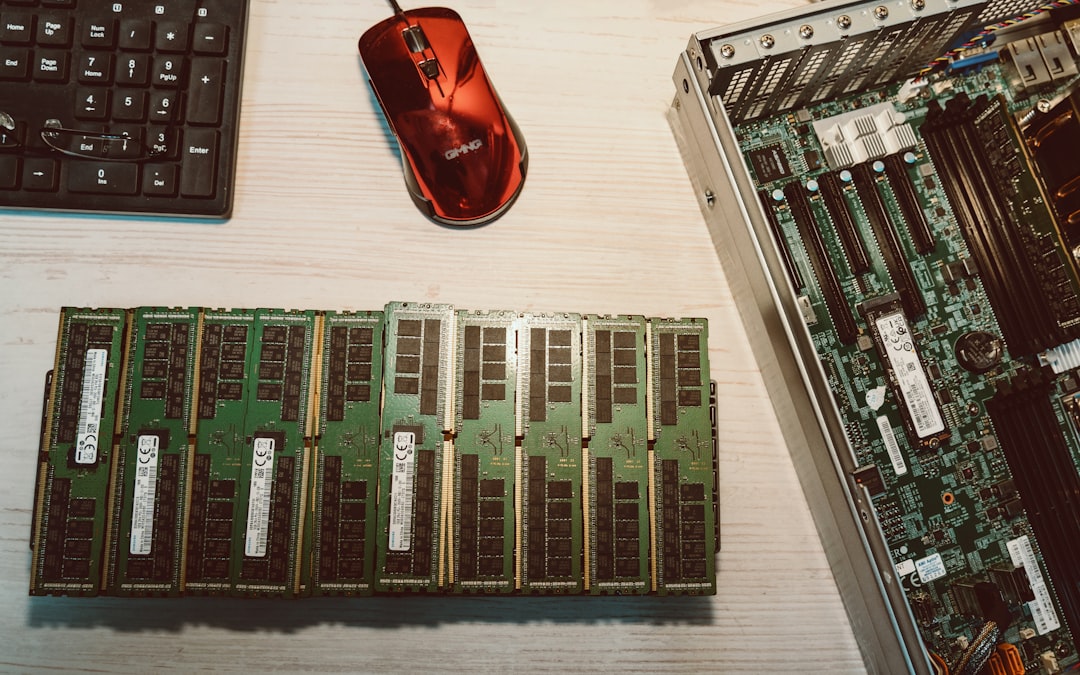
The NH-D15’s front fan usually sits right over your RAM slots. Some RAM has tall heat spreaders, which can get blocked. If the fan touches or sits on the RAM, airflow might suffer — or the fan might not fit at all.
Easy Fixes for the RAM Problem:
- Raise the fan: The most popular trick. Slide the front fan a bit higher on the heatsink fins. This gives the RAM more space below. It works well if your case is tall enough to handle it.
- Use low-profile RAM: Some memory sticks, like Corsair LPX or G.SKILL Ripjaws V, are made shorter. They slip under the fan with no fuss.
- Run single fan mode: The NH-D15 works with one fan, too. Just yank the front fan off and run the middle one only. You lose a few degrees of cooling, but you gain space.
Problem 2: PCIe Slot Interference
Next issue: PCIe blockage. The NH-D15’s heatsink can hover near the GPU slot. If you’re using a motherboard where the top PCIe x16 slot is right next to the CPU socket, the NH-D15 might bump into your graphics card, or make inserting it a tight squeeze.
Solutions to Save Your GPU Slot:
- Check your motherboard layout: Some boards have a little more breathing room between the CPU and first PCIe slot. Check the specs and diagrams before buying.
- Use the second PCIe slot: It might run at x8 instead of x16, but unless you’re doing serious GPU-intensive work, you likely won’t notice a performance hit.
- Rotate the cooler: If your cooler allows it, rotate it 90 degrees so it doesn’t lean toward the PCIe slot.
Planning Ahead: Compatibility & Tips
Before you click the “Buy Now” button, check compatibility.
Noctua offers a free tool called the Noctua Compatibility Center. It shows what RAM and motherboards work best with the NH-D15. Super handy.
Here’s what to look for when building with the NH-D15:
- Case clearance: Most ATX mid-towers will fit it, but double-check. You need at least 165mm CPU cooler clearance inside.
- RAM height: Keep RAM below 32mm tall for easiest fit. This lets you keep both fans without mods.
- Motherboard socket layout: Some boards place the RAM slots very close to the CPU. Others give you breathing room. More space, fewer problems.
Helpful Measurements
- Cooler height: 165mm with fans
- RAM clearance: Up to 32mm with fan at standard position
- Heatsink overhang: About 60–70mm from the center of the CPU socket in most directions
Knowing these numbers helps sketch things out before building.
Cases That Work Well
Some cases are known to be NH-D15-friendly. Here are a few good ones:
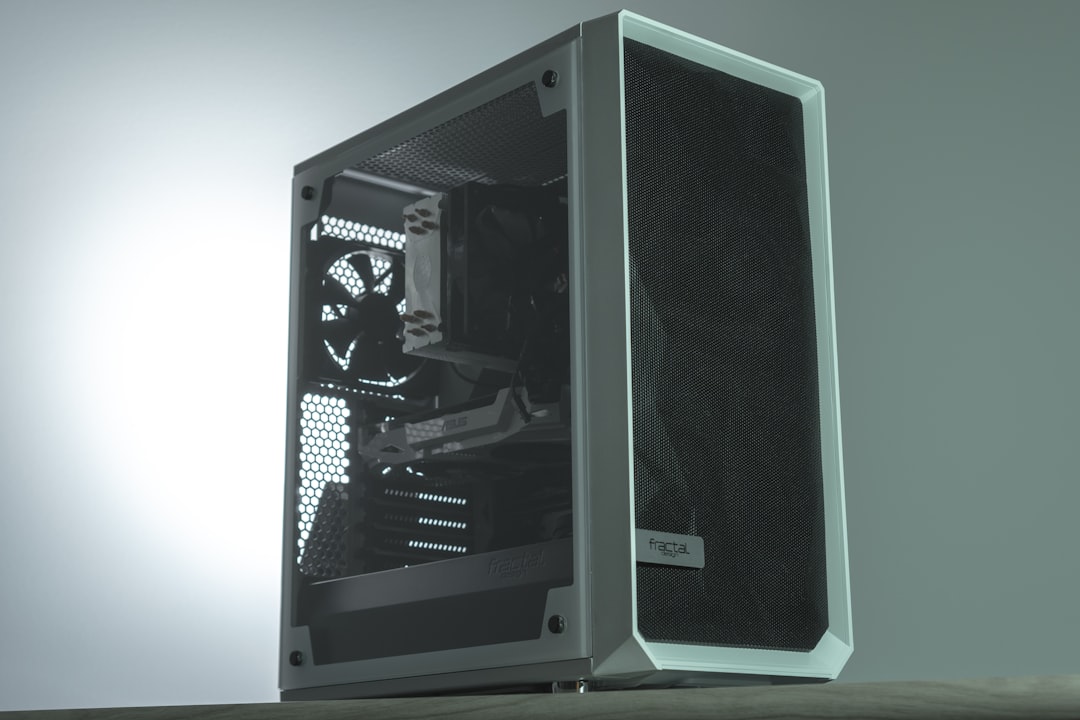
- Fractal Design Meshify C
- NZXT H7 Flow
- Phanteks Eclipse P500A
- Be Quiet! Pure Base 500DX
All of these offer good airflow plus enough height for the NH-D15.
Should You Consider AIO Instead?
If the cooler’s size keeps causing issues, you might ask: should I go with liquid cooling?
All-in-one water coolers take up less space near RAM and PCIe slots. But they come with pumps, tubes, and sometimes noise. And they cost more. The NH-D15 still wins for quiet, reliable performance — if it fits.
Bonus Tip: Mounting Tricks
If you’re installing the NH-D15 yourself, here are some handy builder tips:
- Install RAM first. Putting the RAM in after the cooler is installed can be tough!
- Connect cables early. Plug in CPU power and fan headers before tightening the cooler.
- Use a magnetic screwdriver. It helps avoid drops during installation.
Conclusion
Yes, the Noctua NH-D15 is big. Yes, it can block RAM sticks or scratch up against your GPU. But smart planning and tiny tweaks can fix almost everything.
Low-profile RAM, raising a fan, or slipping the GPU into a second slot can bring harmony back to your PC. If you want extreme air cooling with little noise, the NH-D15 remains a top pick — just give it the space it deserves!
Happy building!