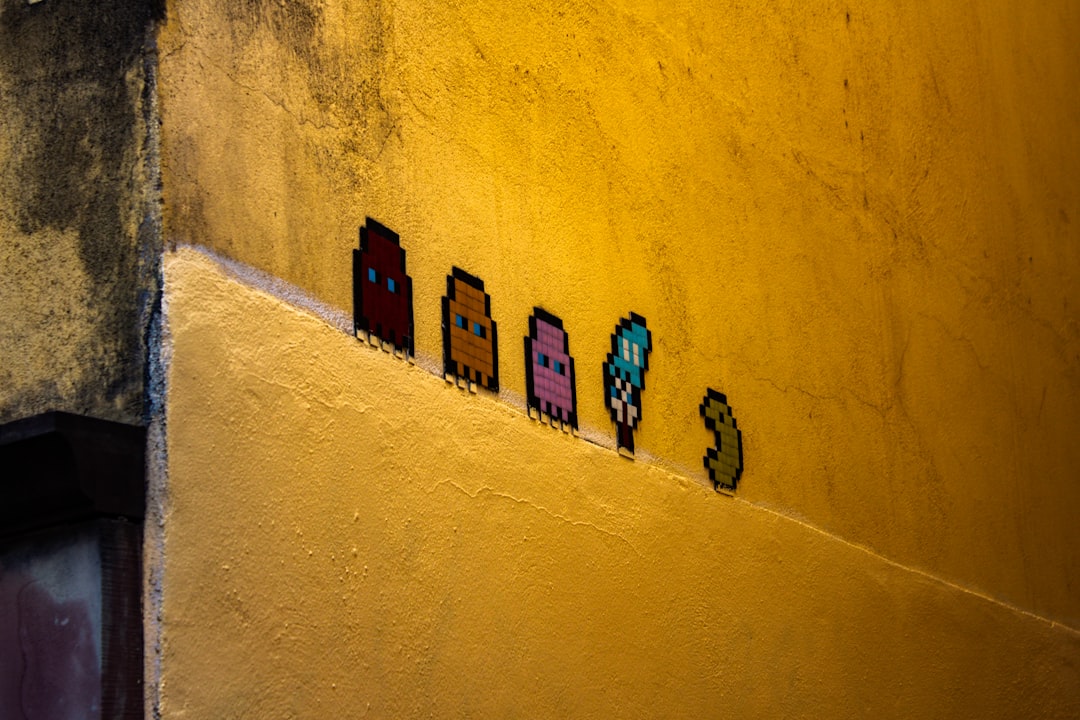
Pixel art is tiny, bright, and full of charm. It looks like old video games, but it still feels fresh today. You can use it for avatars, game sprites, stickers, icons, patterns, and social posts. The best part? You do not need to be a master artist to start.
TLDR: Pixel art generators help you make retro style art fast. Some tools turn photos into pixel art. Others help you draw sprites by hand with easy grids and color palettes. Pick a tool based on your goal, such as a game character, profile picture, icon, or animated sprite.
What Is a Pixel Art Generator?
A pixel art generator is a tool that helps create art made from tiny squares. These squares are called pixels. When they are placed together, they form characters, items, scenes, or icons.
Some generators use AI. You type a prompt, and the tool makes pixel art for you. Other tools convert photos into blocky retro images. Some are more like drawing apps. They give you a grid, brushes, and color tools.
Think of it like digital Lego art. Each pixel is a small block. Put enough blocks together, and boom. You have a tiny dragon, a cute wizard, or a glowing sword.
Why Use a Pixel Art Generator?
Pixel art is fun. But making it from scratch can take time. A generator helps you move faster. It can also help when you feel stuck.
Here are a few great reasons to use one:
- It saves time. You can make quick drafts in minutes.
- It is beginner friendly. You do not need fancy art skills.
- It gives ideas. A random result can spark a whole project.
- It works for many styles. Cute, dark, fantasy, sci fi, arcade, and more.
- It is great for games. Make sprites, tiles, items, and simple backgrounds.
Pixel art generators are not magic buttons. Well, not always. You may still need to tweak details. But they are great helpers. They give you a strong start.
Best Pixel Art Generators and Tools to Try
There are many pixel art tools out there. Some are simple. Some are powerful. Some are best for quick fun. Others are better for serious game art.
1. Piskel
Piskel is a popular pixel art editor. It runs in your browser. It is great for drawing sprites and making simple animations.
You can create frames, preview movement, and export your work. It feels simple, but it has useful tools. It is a nice pick for beginners who want to make game characters.
Best for: animated sprites, game characters, simple pixel drawings.
2. Pixilart
Pixilart is both a drawing tool and a pixel art community. You can create art, share it, and see what other people make. That makes it fun and inspiring.
The editor is easy to use. You get brushes, layers, palettes, and animation options. It is good for casual artists and hobby creators.
Best for: community sharing, learning, casual pixel art.
3. Lospec Pixel Editor
Lospec Pixel Editor is clean and simple. It is made for people who want a focused pixel art workspace. No clutter. No stress.
Lospec is also known for color palettes. This is important. Pixel art often looks better with fewer colors. A good palette can make your art feel more retro and polished.
Best for: color palettes, clean editing, classic pixel style.
4. Aseprite
Aseprite is a favorite among pixel artists. It is not just a generator. It is a full pixel art program. It is made for sprites, animation, and game assets.
It has layers, onion skinning, timeline tools, export options, and more. It may take a little time to learn. But it is powerful and loved by many indie game artists.
Best for: serious sprite work, animation, indie game assets.
5. PixelMe
PixelMe is useful if you want to turn a photo into pixel art. Upload a picture. Choose settings. Get a pixel style version.
This is fun for profile pictures. It is also great for quick portraits. You can create a retro avatar without drawing every pixel yourself.
Best for: avatars, profile pictures, photo to pixel art.
6. AI Image Generators With Pixel Art Prompts
Many AI image tools can create pixel art when you ask for it. You can type prompts like “cute pixel art cat wizard, 16 bit style, simple colors”. The tool then creates an image based on your words.
These tools are great for ideas. They can make characters, scenes, icons, and backgrounds. But results can be mixed. Sometimes the image looks more like “pixel flavored” art than true pixel art. You may need to clean it up in a pixel editor.
Best for: fast ideas, concept art, fun experiments.
How to Choose the Right Pixel Art Generator
Before you pick a tool, ask one simple question. What do I want to make?
If you want a game sprite, choose a sprite editor. If you want a profile picture, try a photo to pixel tool. If you want wild ideas, use an AI prompt tool.
Use this quick guide:
- For game sprites: Try Piskel or Aseprite.
- For simple drawing: Try Pixilart or Lospec Pixel Editor.
- For avatars: Try PixelMe or a photo converter.
- For ideas: Try an AI image generator with pixel prompts.
- For animation: Try Aseprite or Piskel.
Also check export options. Can you save as PNG? Can you export GIFs? Can you make a sprite sheet? These things matter if you plan to use the art in a game.
Tips for Better Pixel Art Results
A generator can help. But a few smart choices make your art much better.
- Use fewer colors. Retro art often uses small palettes.
- Start small. Try 16 by 16 or 32 by 32 pixels.
- Make the shape clear. A strong silhouette matters.
- Avoid too much detail. Tiny art needs simple forms.
- Zoom out often. Pixel art should read well at small size.
- Edit the result. Clean edges and fix strange pixels.
Here is a simple trick. Squint at your art. If you can still tell what it is, the design is probably strong. If it turns into a blob, simplify it.
Fun Pixel Art Ideas to Try
Need a starting point? Try making a tiny set. Sets are more fun than one lonely sprite.
- A hero, a slime, and a treasure chest.
- A cozy room with a bed, plant, and lamp.
- A space ship, stars, and a tiny alien.
- A food pack with pizza, soda, and cake.
- A fantasy icon set with potions, swords, and coins.
You can also make seasonal pixel art. Try pumpkins, snowmen, beach items, or spring flowers. Pixel art makes everything cute. Even a trash can can look charming.
Are Pixel Art Generators Good for Real Projects?
Yes, they can be. But it depends on the project. For personal art, social posts, and prototypes, they are amazing. For a finished game or product, you should polish the output.
AI and auto generators may create odd shapes. They may also use too many colors. A human touch helps. Clean the design. Reduce colors. Fix the outline. Make sure it matches your style.
If you are making a game, keep all assets consistent. Use the same size, palette, and level of detail. A 16 bit knight next to a soft AI castle may look weird. Unity is key.
Final Thoughts
Pixel art generators are like tiny art sidekicks. They help you start fast. They make retro design feel easy. They also turn blank canvas fear into playful clicking.
If you are new, begin with a simple editor like Piskel, Pixilart, or Lospec Pixel Editor. If you want more power, try Aseprite. If you want quick avatars or wild ideas, use photo converters or AI tools.
Most of all, have fun. Pixel art is small, but it has big personality. Grab a grid, pick a bright palette, and make something wonderfully blocky.