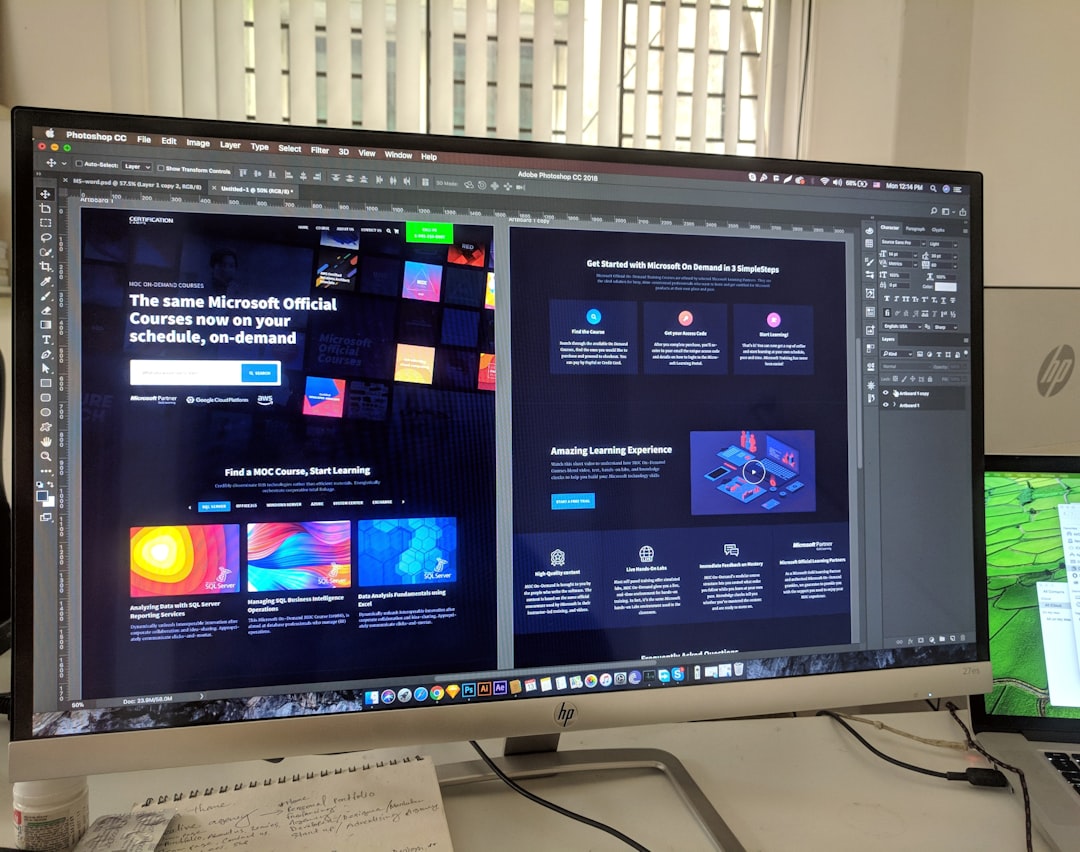
Use 1920 x 1080 pixels for standard YouTube videos. Use 1080 x 1920 pixels for Shorts. Use 1280 x 720 pixels for thumbnails. These sizes fit YouTube’s 16:9 and 9:16 formats best, and YouTube recommends 16:9 for standard video uploads [source: YouTube Help].
TLDR: For regular YouTube videos, design in 1920 x 1080 px. For Shorts, use 1080 x 1920 px. For thumbnails, use 1280 x 720 px, with bold text and a clean face or product shot. Example: a gaming creator who switched from a cluttered 1920 x 1080 thumbnail to a clean 1280 x 720 design with 4 words saw their click rate rise from 3.2% to 4.1% over 30 days.
YouTube sizes, minus the headache
YouTube design can feel simple until your text gets chopped off. Or your thumbnail looks blurry. Or your Short has black bars on both sides. Fun times.
The fix is boring but powerful. Start with the right canvas size. Then keep faces, text, and logos away from the edges.
- Standard YouTube video: 1920 x 1080 px
- YouTube Short: 1080 x 1920 px
- YouTube thumbnail: 1280 x 720 px
- Channel banner: 2560 x 1440 px
- Profile picture: 800 x 800 px
Think of these as your “don’t make me redo this” numbers.
The golden rule: match the viewer’s screen
Most regular YouTube videos are watched in a wide rectangle. That is 16:9. It is the classic TV shape.
Shorts are different. They are tall. That is 9:16. It is the phone shape.
If you mix them up, things get ugly fast. A wide video posted as a Short feels tiny. A tall video posted as a normal upload gets giant black bars. Nobody asked for that.
Best YouTube video size
For normal YouTube uploads, use 1920 x 1080 px. This is Full HD. It looks sharp. It is easy to edit. It does not create huge files like 4K.
You can upload 4K too. That means 3840 x 2160 px. It looks great on large screens. But it takes longer to export, upload, and process. Expect to waste time if your internet is slow.
For most creators, 1080p is the sweet spot.
Best YouTube Shorts size
Use 1080 x 1920 px for Shorts. Keep the main action in the center. Put captions in the middle third of the screen.
Do not place text too low. YouTube adds buttons, captions, titles, and icons near the bottom. Your perfect punchline can vanish behind the Like button. It drives me crazy that one tiny icon can ruin a whole edit.
Safe rule:
- Keep faces in the upper middle.
- Keep captions above the bottom buttons.
- Keep logos small.
- Use big text. Phones are small.
Best YouTube thumbnail size
Use 1280 x 720 px. Keep it under 2 MB. Use JPG or PNG.
Your thumbnail is not art for a museum. It is a tiny billboard. People scroll fast. They do not read tiny text. They barely glance.
Use this simple formula:
- One clear subject. A face, product, tool, or result.
- Three to five words. Big and bold.
- High contrast. Light text on dark background, or the reverse.
- One emotion. Shock, joy, fear, relief, or curiosity.

Canva vs. Adobe Express: quick answer
Canva is better if you want speed, templates, and easy resizing. Adobe Express is better if you already use Adobe apps or want cleaner brand control.
Both can make great YouTube graphics. Neither is magic. Bad sizing still makes bad designs.
Using Canva for YouTube dimensions
Canva is very beginner-friendly. Search for “YouTube thumbnail” and it opens the right size. Search for “YouTube video” or “YouTube Shorts” and you get ready-made layouts.
What Canva does well:
- Huge template library.
- Fast drag and drop editing.
- Easy text effects.
- Simple background remover on paid plans.
- Quick resize on paid plans.
The Resize tool is the star. You can turn a thumbnail into a Short graphic in a few clicks. Of course, it still needs fixing. Text does not always land perfectly. Faces may shift. But it saves time.
Honestly, it feels like Canva was built for creators who have 12 minutes before posting. That is not an insult. That is useful.
Using Adobe Express for YouTube dimensions
Adobe Express also has YouTube templates. You can choose thumbnails, videos, banners, and social posts. It feels tidy. It also connects nicely with Adobe fonts, stock images, and brand kits.
What Adobe Express does well:
- Clean template styles.
- Strong brand tools.
- Good font options.
- Nice photo edits.
- Easy access if you use Adobe Creative Cloud.
Adobe Express can feel a bit slower when you just want to slap text on a thumbnail and leave. A simple export can take a few extra clicks. Not tragic. Just mildly annoying when you are rushing.
Canva vs. Adobe Express for resizing
Resizing is where creators save the most time.
| Task | Canva | Adobe Express |
|---|---|---|
| Make a thumbnail | Very fast | Fast |
| Resize to Shorts | Easy with Resize | Easy, but more manual |
| Brand consistency | Good | Very good |
| Beginner use | Very easy | Easy |
If you post often, Canva feels faster. If you build a polished channel with strict brand rules, Adobe Express feels stronger.
Safe zones matter more than people think
Your design has edges. YouTube has overlays. Phones have weird screen shapes. So keep key stuff toward the center.
For thumbnails, keep text away from the bottom right. YouTube places the video time there. If your word “FREE” sits there, the timestamp may cover it. Great. Now it says “FR 12:45.”
For Shorts, avoid the lower right corner. That area gets crowded with Like, Comment, Share, and Subscribe buttons.
Best export settings
Use simple settings. Do not overthink it.
- Video format: MP4
- Video resolution: 1920 x 1080 for standard videos
- Shorts resolution: 1080 x 1920
- Thumbnail format: PNG or JPG
- Thumbnail size: under 2 MB
PNG is great for text-heavy thumbnails. JPG is fine for photo-heavy designs. If your thumbnail looks fuzzy, export again at the correct size.
Simple workflow that works
- Create your main design first.
- Use the correct size from the start.
- Add large text.
- Check the design at small size.
- Resize for other formats.
- Export and preview before upload.
Here is a smart setup. Make your YouTube thumbnail in 1280 x 720 px. Then make a Short cover in 1080 x 1920 px. Use the same colors and title style. This helps viewers spot your content faster.
Which tool should you pick?
Pick Canva if you want speed. It is great for creators, coaches, gamers, teachers, and small teams. You can make a solid thumbnail before your coffee cools.
Pick Adobe Express if you care more about brand polish. It is a good fit for teams, marketers, and creators who already pay for Adobe tools.
The real trick is not the tool. It is the size. Start with 1920 x 1080, 1080 x 1920, or 1280 x 720. Then keep the design clean. Big text wins. Clear faces win. Correct dimensions win.